Manual OIA DB Cleanup
1. Truncate Ingestion Tracker DB Data
Delete INGESTION TRACKER DB DATA : These tables are obsolete and not used post 3.5 release (Step is applicable only after post upgrade 3.5 release)
Recommendation is to delete this obsolete tables first and go through the steps to release the disk space
1.1 Steps to Truncate Ingestion Tracker DB Data
Note
This step is applicable only after post upgrade 3.5 release
Starting with the 3.5 release, ingestion-tracker data is saved in pstream without using the database. Therefore, the user can truncate the ingestion-tracker DB data after a week after upgrading to version 3.5.
- Please execute the following commands to get the MariDB cluster details and truncate the DB tables of the Ingestion Tracker service that the rdafcli VM is using.
Note
Please Ignore the Message mysql: [Warning] Using a password on the command line interface can be insecure
MARIADB_HOST=`cat /opt/rdaf/rdaf.cfg | grep -A3 mariadb | grep datadir | awk '{print $3}' | cut -f1 -d'/'`
MARIADB_USER=`cat /opt/rdaf/rdaf.cfg | grep -A3 mariadb | grep user | awk '{print $3}' | base64 -d`
MARIADB_PASSWORD=`cat /opt/rdaf/rdaf.cfg | grep -A3 mariadb | grep password | awk '{print $3}' | base64 -d`
IT_DB_NAME=`mysql -u$MARIADB_USER -p$MARIADB_PASSWORD -h $MARIADB_HOST -P3307 -e "show databases;" | grep ingestion_tracker`
Note
On failure of any of the below mentioned Truncate Commands for Sourceevent, Event & Eventtrail execution, Please execute the Commands again to truncate the data.
Truncate Sourceevent Table
mysql -u$MARIADB_USER -p$MARIADB_PASSWORD -h $MARIADB_HOST -P3307 -e "use $IT_DB_NAME; truncate sourceevent;"
Truncate Event Table
mysql -u$MARIADB_USER -p$MARIADB_PASSWORD -h $MARIADB_HOST -P3307 -e "use $IT_DB_NAME; truncate event;"
Truncate Eventtrail Table
mysql -u$MARIADB_USER -p$MARIADB_PASSWORD -h $MARIADB_HOST -P3307 -e "use $IT_DB_NAME; truncate eventtrail;"
- Command to verify if the data truncated from sourceevent, event & eventtrail tables
mysql -u$MARIADB_USER -p$MARIADB_PASSWORD -h $MARIADB_HOST_1 -P3307 -e "use $IT_DB_NAME; select count(id) as sourceventcount from sourceevent;select count(id) as eventcount from event;select count(id) as eventtrailcount from eventtrail;"
mysql: [Warning] Using a password on the command line interface can be insecure.

+-----------------+
| sourceventcount |
+-----------------+
|               0 |
+-----------------+
+------------+
| eventcount |
+------------+
|          0 |
+------------+
+-----------------+
| eventtrailcount |
+-----------------+
|               0 |
+-----------------+
Note
Please Ignore the Message mysql: [Warning] Using a password on the command line interface can be insecure
1.2 Steps to Reduce the Size of the MySQL DB Disk for Ingestion Tracker
-
Once all the data is purged from the alerthistory DB table, user needs to execute the below mentioned commands.
-
DB doesn’t free up the used disk immediately. In order to reclaim the memory instantly please run the following commands tables from where rdafcli VM is running
MARIADB_HOST_1=`cat /opt/rdaf/rdaf.cfg | grep -A4 mariadb | grep host | awk '{print $3}'| cut -d "," -f 1`

MARIADB_HOST_2=`cat /opt/rdaf/rdaf.cfg | grep -A4 mariadb | grep host | awk '{print $3}'| cut -d "," -f 2`

MARIADB_HOST_3=`cat /opt/rdaf/rdaf.cfg | grep -A4 mariadb | grep host | awk '{print $3}'| cut -d "," -f 3`

MARIADB_USER=`cat /opt/rdaf/rdaf.cfg | grep -A3 mariadb | grep user | awk '{print $3}' | base64 -d`

MARIADB_PASSWORD=`cat /opt/rdaf/rdaf.cfg | grep -A3 mariadb | grep password | awk '{print $3}' | base64 -d`

IT_DB_NAME=`mysql -u$MARIADB_USER -p$MARIADB_PASSWORD -h $MARIADB_HOST_1 -P3307 -e "show databases;" | grep ingestion_tracker`
Note
Check For Disk Usage
-
Before executing optimize command, Run
df -khon mysql Infra node and check for /var/mysql disk size. -
On Successful execution of below command run
df -khcommand again and verify the disk space for/var/mysql. For Example, If disk size is 100GB before executing the command, It should get reduced based on the ingestion-tracker disk usage.
- Execute the below optimize command on MARIADB_HOST_1
mysql -u$MARIADB_USER -p$MARIADB_PASSWORD -h $MARIADB_HOST_1 -P3307 -e "use $IT_DB_NAME; set global wsrep_osu_method='RSU';optimize table sourceevent;optimize table event;optimize table eventtrail;set global wsrep_osu_method='TOI';"
- Execute the below optimize command on MARIADB_HOST_2
mysql -u$MARIADB_USER -p$MARIADB_PASSWORD -h $MARIADB_HOST_2 -P3307 -e "use $IT_DB_NAME; set global wsrep_osu_method='RSU';optimize table sourceevent;optimize table event;optimize table eventtrail;set global wsrep_osu_method='TOI';"
- Execute the below optimize command on MARIADB_HOST_3
mysql -u$MARIADB_USER -p$MARIADB_PASSWORD -h $MARIADB_HOST_3 -P3307 -e "use $IT_DB_NAME; set global wsrep_osu_method='RSU';optimize table sourceevent;optimize table event;optimize table eventtrail;set global wsrep_osu_method='TOI';"
Note
On failure of commands execution please execute the optimize commands again on the respective MARIA_DB_HOST command
mysql: [Warning] Using a password on the command line interface can be insecure.
+----------------------------------------------------------------+----------+----------+-------------------------------------------------------------------+
| Table                                                          | Op       | Msg_type | Msg_text                                                          |
+----------------------------------------------------------------+----------+----------+-------------------------------------------------------------------+
| 61b1a5aeedad4852b92ee40a31b3e2c5_ingestion_tracker.sourceevent | optimize | note     | Table does not support optimize, doing recreate + analyze instead |
| 61b1a5aeedad4852b92ee40a31b3e2c5_ingestion_tracker.sourceevent | optimize | status   | OK                                                                |
+----------------------------------------------------------------+----------+----------+-------------------------------------------------------------------+
+----------------------------------------------------------+----------+----------+-------------------------------------------------------------------+
| Table                                                    | Op       | Msg_type | Msg_text                                                          |
+----------------------------------------------------------+----------+----------+-------------------------------------------------------------------+
| 61b1a5aeedad4852b92ee40a31b3e2c5_ingestion_tracker.event | optimize | note     | Table does not support optimize, doing recreate + analyze instead |
| 61b1a5aeedad4852b92ee40a31b3e2c5_ingestion_tracker.event | optimize | status   | OK                                                                |
+----------------------------------------------------------+----------+----------+-------------------------------------------------------------------+
+---------------------------------------------------------------+----------+----------+-------------------------------------------------------------------+
| Table                                                         | Op       | Msg_type | Msg_text                                                          |
+---------------------------------------------------------------+----------+----------+-------------------------------------------------------------------+
| 61b1a5aeedad4852b92ee40a31b3e2c5_ingestion_tracker.eventtrail | optimize | note     | Table does not support optimize, doing recreate + analyze instead |
| 61b1a5aeedad4852b92ee40a31b3e2c5_ingestion_tracker.eventtrail | optimize | status   | OK                                                                |
+---------------------------------------------------------------+----------+----------+-------------------------------------------------------------------+
Note
Please Ignore the Message mysql: [Warning] Using a password on the command line interface can be insecure
2. Manual Purge History Alerts
Problem Statement
-
Until 3.5 release
The purge alerts history job is currently failing, leading to continuous growth of the alerthistory table. As a result, alerts are not being purged according to the configured settings. To prevent database bloat and ensure alert processing remains unaffected, a custom cleanup job should be scheduled at regular intervals (preferably once every 3 months) to remove stale data from the alerthistory table.
-
Starting from versions 3.8.0, 8.1.0 & 8.1.0.1
As part of ongoing performance improvements, the alerthistory database table now retains only the last 1 hour of CLEARED alert data. In contrast, the corresponding PStream continues to retain CLEARED alerts based on the configured purge settings. A scheduled job runs periodically to enforce this behavior, ensuring that only the most recent 1 hour of data is maintained in the alerthistory table.
-
Custom Job Execution Before Upgrade
a) A custom job must be executed before starting the upgrade process to purge alerthistory data offline and reduce its volume to a manageable size.
b) Ideally, the custom job should be run one week prior to the upgrade and then executed again one day before the upgrade begins.
2.1 Prerequisites To Execute Script
-
Check and Create
oia-alerts-payloadPstream- First, check if the
oia-alerts-payloadpstream already exists within the system. Navigate to Main Menu --> Configuration --> RDA Administration --> Persistent Streams to verify its presence. -
Create Pstream if Missing
- If the
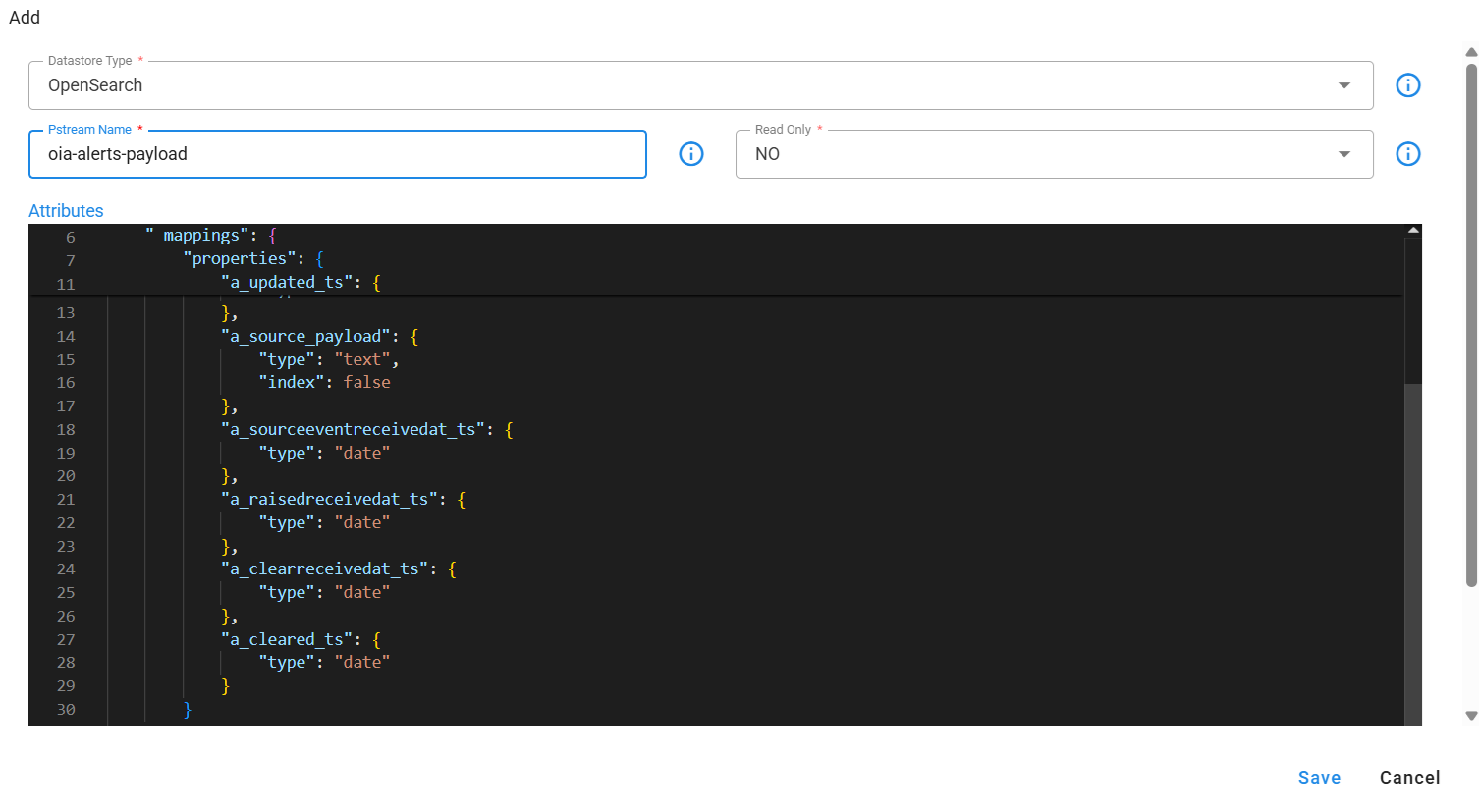
oia-alerts-payloadpstream is not found, create it using the definition provided below. To create a new pstream, go to Main Menu --> Configuration --> RDA Administration --> Persistent Streams --> Add using the appropriate definition.
Click to view the definition of oia-alerts-payload pstream
  {
    "unique_keys": [
        "a_id"
    ],
    "_mappings": {
        "properties": {
            "a_created_ts": {
                "type": "date"
            },
            "a_updated_ts": {
                "type": "date"
            },
            "a_source_payload_compressed": {
                "type": "boolean"
            },
            "a_source_payload": {
                "type": "text",
                "index": false
            },
            "a_sourceeventreceivedat_ts": {
                "type": "date"
            },
            "a_raisedreceivedat_ts": {
                "type": "date"
            },
            "a_clearreceivedat_ts": {
                "type": "date"
            },
            "a_cleared_ts": {
                "type": "date"
            }
        }
    },
    "default_values": {},
    "case_insensitive": true
}
-
Script needs to be executed inside a service container. Preferably configuration-service which has less amount of load
-
Download
PurgeHistoryAlertsJob.pyscript from below given location
wget https://macaw-amer.s3.us-east-1.amazonaws.com/releases/rdaf-platform/1.3.3/purge_history_alerts_job.tar
- Use the following command to untar the downloaded file
purge_history_alerts_job.tar.
- Change the directory to
purge_history_alerts_job
- The
purge_history_alerts_jobdirectory contains the following scripts, which will be used for purging historical alerts, use the command mentioned below which is used to purge historical alerts from DB.
- copy the downloaded file inside the configuration-service container. Command
2.2 Purge Job Executes in Phases
2.2.1 Copy History Alerts from AlertHistory Table to Temp Table
-
Copy historical alert data from the AlertHistory table into the temp_alerthistory table.
a) Action used to trigger phase -
COPY_TO_TEMP_TABLE.b) Drops already created a
temp_alerthistorytable if it exists.c) Creates
temp_alerthistorywith required columns for purge job.d) Copies data from alerthistory table to
temp_alerthistorytable.e) Copies alerthistory data to the
oia-alerts-payloadstream when thepublishToAlertsPayloadToStreamattribute is specified during command execution. -
Run the
PurgeHistoryAlertsJob.pyscript in the background to copy alert data from the alerthistory table to thetemp_alerthistorytable. -
Commands To Execute Script
-
Command to run prior to the 3.8 & 8.0 release
Command to copy all data to temp_alerthistory table from alerthistory table.
-
Command to run for version 3.8.0, 8.1.0 and 8.1.0.1
Command to copy all data to temp_alerthistory table and alert payload pstream from alerthistory table.
Note
In case of any failure while executing COPY_TO_TEMP_TABLE step, check for the status for which copying failed and rerun the copy command again targeting specifc status only.
- Sample logs to check for script failure while copying data action:
2025-03-24 13:36:56,764 [PID=138013:TID=MainThread:__main__:copyToTempTable:258] ERROR - Failed to execute copying alert history data to temp table for projectId:833e7a3e-deec-11ef-9da7-22e179ae2150, status: CORRELATED- Sample command to execute for specific status
nohup python PurgeHistoryAlertsJob.py --projectId <projectId> --action COPY_TO_TEMP_TABLE --publishToAlertsPayloadToStream TRUE --copyDataForStatus CORRELATED –createTempTable FALSE &Allowed values for copyDataForStatus:
CORRELATED,CLEARED,CORRELATING,SUPPRESSED,SUPPRESS_FLAPPING,ACTIVE,AGGREGATENote
Estimated completion time for copying data to the temporary temp_alerthistory table.
- Copying 6,400,000 records from the alerthistory table to Pstream may take approximately 7 hours to complete.
-
-
Parameters
Parameter NameDescription projectIdSpecify the Project ID. purgeIntervalDefine the duration for which alerts should be purged. purgeIntervalUnitSet the unit for the purge interval (hours or days) copyDataForStatusCopy alerts data to temp table/pstream for the given status, Status can be comma separated. Allowed values CORRELATED,CLEARED,CORRELATING,SUPPRESSED,SUPPRESS_FLAPPING,ACTIVE,AGGREGATEpublishToAlertsPayloadToStreamPublish to oia-alerts-payloadPStream before copying data totemp_alerthistorytable. Allowed values TRUE/FALSE. This parameter should be passed forCOPY_TO_TEMP_TABLEaction only.createTempTableCreates temporary temp_alerthistory table. Possible values TRUE/FALSE. Defaults to TRUE. If no parameter is specified, the command will drop any existing temp_alerthistory table and create a new one.
2.2.2 Purge Alerts From History Table
-
Once the alerts are successfully copied, run the purge command to clear them from the alerthistory table.
a) Action used to trigger phase -
PURGE_HISTORY_ALERTS.b) Purge alerts from the alerthistory table for the given purge interval.
c) The purgeLimit parameter allows the user to limit how many alerts are purged during the current run. For instance, if a user has a lot of alerts that need to be removed, it is recommended that they be removed in batches, such as 10,000 in a single run.
d) Purge command needs to be executed manually multiple times until all the alerts are purged from alerthistory table.
-
Run the
PurgeHistoryAlertsJob.pyscript in the background to delete historical alerts from the system.
Note
Purging 100,000 records from the alerthistory table may take approximately 1 hour to complete.
-
Commands To Execute Script
-
Command to run prior to the 3.8 & 8.0 release
Execute the PurgeHistoryAlertsJob.py script using nohup to run it in the background, specifying the project ID, purge interval and unit, purge limit, and the action to purge history alerts.
Note
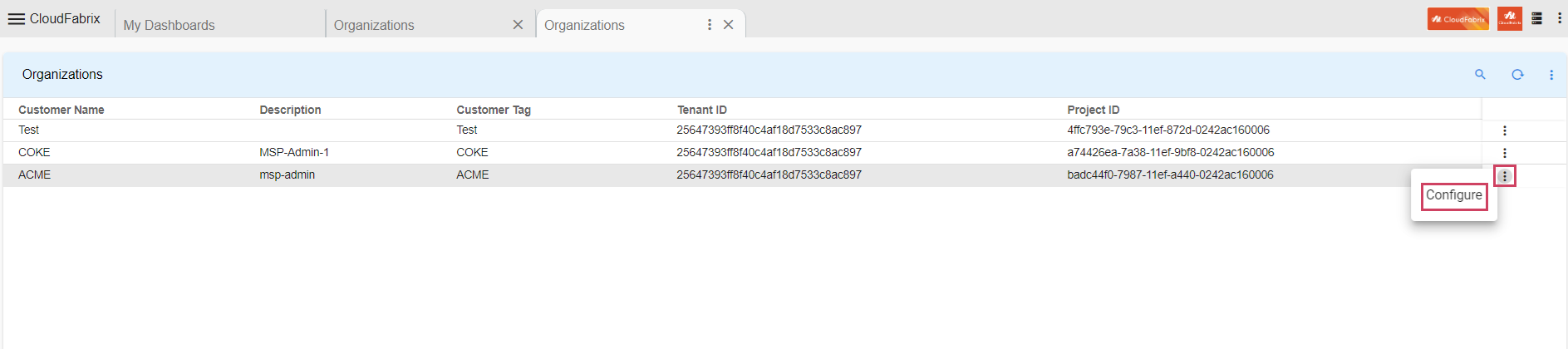
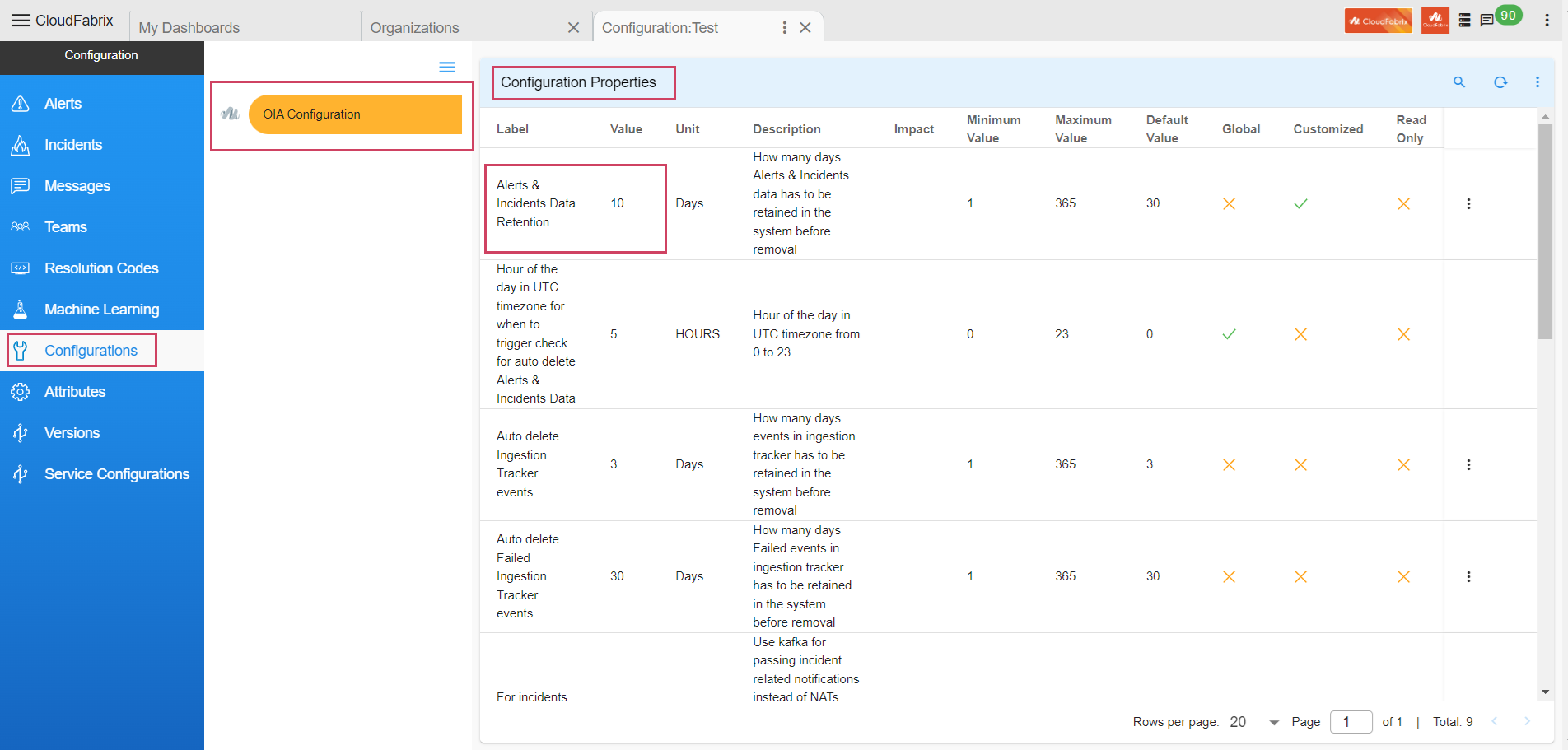
purgeInterval- Value should be configured settings value of Alerts & Incidents Data Retention in Configurations.Navigation Path to fetch Alerts & Incidents Data Retention - Configuration → Apps Administration → Organizations → Configure → Configurations → Alerts & Incidents Data Retention.
-
Command to run for version 3.8.0, 8.1.0 and 8.1.0.1
Execute the PurgeHistoryAlertsJob.py script using nohup to run it in the background, specifying the project ID, purge interval and unit, purge limit, and the action to purge history alerts.
Purge History Alerts Command Examples
a) Using Days purgeIntervalUnit
nohup python PurgeHistoryAlertsJob.py --projectId <projectId> --purgeInterval 90 --purgeIntervalUnit days --purgeLimit 100000 --action PURGE_HISTORY_ALERTS &b) Using Hours as purgeIntervalUnit
-
-
Parameters
Parameter NameDescription projectIdSpecify the Project ID. purgeIntervalThis parameter enhances system performance and alert database management by allowing you to specify a duration after which resolved or outdated alerts are automatically removed. For example, setting --purgeInterval 7 configures the system to purge alerts that have been resolved or inactive for more than seven days. purgeIntervalUnitSet the unit for the purge interval (hours or days). purgeLimitSets the maximum number of alerts to purge per run, with a recommended range of 10,000 to 100,000. Although you specify the purgeLimit, the script processes data in internal batches of 100 alerts each to minimize any impact on alert processing. actionPURGE_HISTORY_ALERTSIndicates the action to perform historical alert purging.2024-11-02 05:01:01,671:__main__:228:INFO:MainThread:Total No. of alerts before purging: 2498975 and after purging: 2488975 for project id:12345 , purgeInterval:15 found to delete before-date: 2024-10-18 04:52:08.168000. took: 2604 Millis2024-11-02 05:01:01,671:__main__:230:INFO:MainThread:Completed purge historical alerts job took:533503 Millis
Important
Purging 100,000 alerts takes approximately one hour. To purge all alerts within a specified time range from the alerthistory table, this command must be executed repeatedly.
2.3 Steps to Verify the No. of Alerts to Purge
Run the below mentioned command
python PurgeHistoryAlertsJob.py --projectId <projectId> --purgeInterval <Interval to purge data> --purgeIntervalUnit <unit to purge hours/days> --action GET_PURGE_ALERTS_COUNT
(Below log message shows number of alerts left to purge)
2024-11-05 06:42:41,015:__main__:229:INFO:MainThread:No. of alerts to purge: 8974 for project id:e62a316a-c598-11ee-9b1a-ca8d9d10a565, purgeIntervalDays:1 found to delete before-date: 2024-11-04 06:42:41. took: 15 Millis
Observations
-
Check if the UI is loading properly and alerts are processed.
-
Check in logs if there are any deadlocks of the Alert-Processor. String to check from logs Deadlock
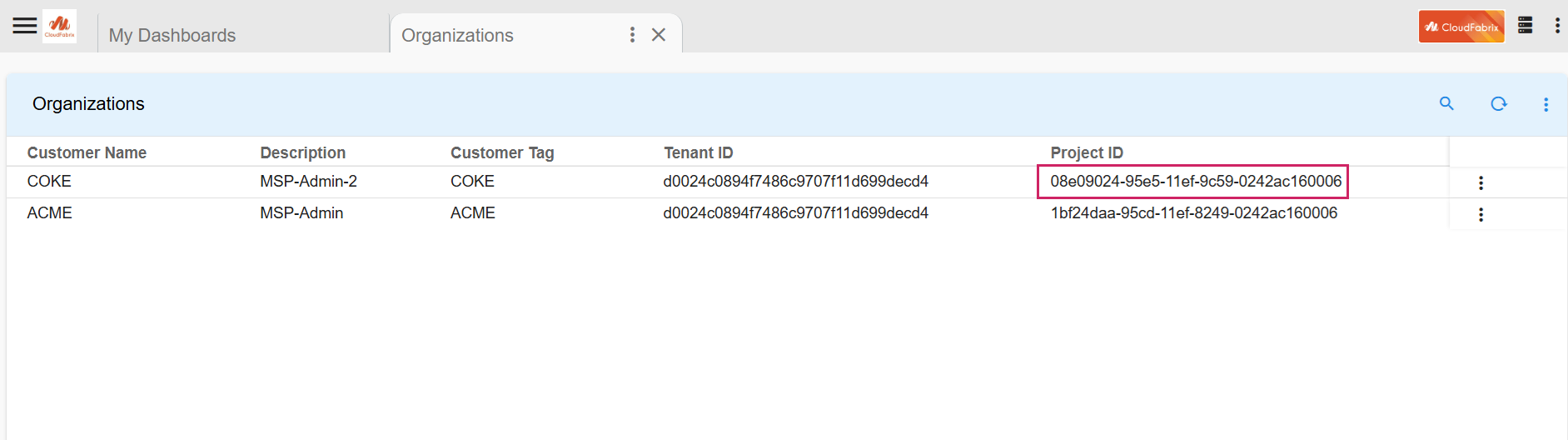
2.4 Path To Get Project Id
- Go to Main Menu → Configuration → Apps Administration
2.5 Logging
-
When the script is executed, a log file is generated under the mount path
/opt/rdaf/logs/ -
Logs are stored in a folder named using the timestamp of the job execution, with the format
purge_history_job_<Month>_<Day>_<Year>_<HH>_<MM>_<SS>
Important
In Kubernetes environments, file-based logging is disabled. As a result, logs for script execution will not be available in the usual log files. Please refer to the nohup.out file for tracking the job status and output.
Info
Script Failure Use Case
In case of script failure, Please re-run the script to trigger purge action again.
- In case of script failure in
COPY_TO_TEMP_TABLEaction, check for below error messages in the logs. Check the logs to identify the status for which copying failed. Run the script for that failed status only. Command to execute script:
nohup python PurgeHistoryAlertsJob.py --projectId <projectId> --action COPY_TO_TEMP_TABLE --publishToAlertsPayloadToStream TRUE --copyDataForStatus <comma separated status> &
- Sample logs to check for script failure while copying data action:
-
Observations During Script Execution
a) Ensure the UI is loading correctly and alerts are being processed without delay.
b) Monitor logs for any signs of alert processor deadlocks.
c) Look for the keyword "Deadlock" in the logs to identify potential issues.
2.6 Steps to Reduce the Size of the MySQL DB Disk for Alert Processor
Important
-
As outlined in the MARIA DB Documentation,optimizing a table requires recreating it, which helps reclaim unused disk space and refreshes index statistics
-
Therefore, the recommended approach is to first remove any unnecessary rows before executing the optimize table command.
-
Recreating the table is necessary for optimization, but it will render the UI temporarily inaccessible. Therefore, this process should be scheduled during a maintenance window to accommodate the application's downtime.
-
Disk usage when the optimize command was executed:
When executing the OPTIMIZE command, disk space usage will roughly double the current amount due to the table recreation process. For example, if a table currently uses 10GB, approximately 20GB or more of free space will be required.
-
Once all the data is purged from the alerthistory DB table, user needs to execute the below mentioned commands.
-
DB doesn’t free up the used disk immediately. In order to reclaim the memory instantly please run the following commands tables from where rdafcli VM is running
MARIADB_HOST_1=`cat /opt/rdaf/rdaf.cfg | grep -A4 mariadb | grep host | awk '{print $3}'| cut -d "," -f 1`
MARIADB_HOST_2=`cat /opt/rdaf/rdaf.cfg | grep -A4 mariadb | grep host | awk '{print $3}'| cut -d "," -f 2`
MARIADB_HOST_3=`cat /opt/rdaf/rdaf.cfg | grep -A4 mariadb | grep host | awk '{print $3}'| cut -d "," -f 3`
MARIADB_USER=`cat /opt/rdaf/rdaf.cfg | grep -A3 mariadb | grep user | awk '{print $3}' | base64 -d`
MARIADB_PASSWORD=`cat /opt/rdaf/rdaf.cfg | grep -A3 mariadb | grep password | awk '{print $3}' | base64 -d`
AP_DB_NAME=`mysql -u$MARIADB_USER -p$MARIADB_PASSWORD -h $MARIADB_HOST_1 -P3307 -e "show databases;" | grep alert_processor`
Note
Check For Disk Usage
-
Before executing optimize command, Run
df -khon mysql Infra node and check for /var/mysql disk size. -
On Successful execution of below command run
df -khcommand again and verify the disk space for/var/mysql. For Example, If disk size is 100GB before executing the command, It should get reduced based on the purged alerts count.
- Execute the below optimize command on MARIADB_HOST_1
mysql -u$MARIADB_USER -p$MARIADB_PASSWORD -h $MARIADB_HOST_1 -P3307 -e "use $AP_DB_NAME; set global wsrep_osu_method='RSU';optimize table alerthistory;set global wsrep_osu_method='TOI';"
- Execute the below optimize command on MARIADB_HOST_2
mysql -u$MARIADB_USER -p$MARIADB_PASSWORD -h $MARIADB_HOST_2 -P3307 -e "use $AP_DB_NAME; set global wsrep_osu_method='RSU';optimize table alerthistory;set global wsrep_osu_method='TOI';"
- Execute the below optimize command on MARIADB_HOST_3
mysql -u$MARIADB_USER -p$MARIADB_PASSWORD -h $MARIADB_HOST_3 -P3307 -e "use $AP_DB_NAME; set global wsrep_osu_method='RSU';optimize table alerthistory;set global wsrep_osu_method='TOI';"
Note
On failure of commands execution please execute the optimize commands again on the respective MARIA_DB_HOST command
mysql: [Warning] Using a password on the command line interface can be insecure.
+---------------------------------------------------------------+----------+----------+-------------------------------------------------------------------+
| Table                                                         | Op       | Msg_type | Msg_text                                                          |
+---------------------------------------------------------------+----------+----------+-------------------------------------------------------------------+
| 54454808c6b74a99827dfc2bb0f4cdb3_alert_processor.alerthistory | optimize | note     | Table does not support optimize, doing recreate + analyze instead |
| 54454808c6b74a99827dfc2bb0f4cdb3_alert_processor.alerthistory | optimize | status   | OK                                                                |
+---------------------------------------------------------------+----------+----------+-------------------------------------------------------------------+
Note
Please Ignore the Message mysql: [Warning] Using a password on the command line interface can be insecure