Upgrade to 3.4 and 7.4
1. Upgrade from 7.3 to 7.4
Note
This is a Non-K8s cli Upgrade Document
RDAF Infra Upgarade from 1.0.2 to 1.0.3
RDAF Platform: From 3.3 to 3.4
OIA (AIOps) Application: From 7.3 to 7.4
RDAF Deployment rdaf CLI: From 1.1.10 to 1.2.0
RDAF Client rdac CLI: From 3.3 to 3.4
1.1. Prerequisites
Before proceeding with this upgrade, please make sure and verify the below prerequisites are met.
-
RDAF Deployment CLI version: 1.1.10
-
Infra Services tag: 1.0.2,1.0.2.1(nats, haproxy)
-
Platform Services and RDA Worker tag: 3.3
-
OIA Application Services tag: 7.3,7.3.0.1
-
AIA Application Services tag: 7.3
-
Delete “alert-model” dataset from datasets reports on UI before start upgrade
-
Check all MariaDB nodes are sync on HA setup using below commands before start upgrade
-
mysql -u<mysql username> -p<mysql password> -h <host IP> -P3307 -e "show status like 'wsrep_local_state_comment';" -
mysql -u<mysql username> -p<mysql password> -h <host IP> -P3307 -e "SHOW GLOBAL STATUS LIKE 'wsrep_cluster_size'"; -
CloudFabrix recommends taking VMware VM snapshots where RDA Fabric infra/platform/applications are deployed
Warning
Make sure all of the above pre-requisites are met before proceeding with the upgrade process.
Warning
Non-Kubernetes: Upgrading RDAF Platform and AIOps application services is a disruptive operation. Schedule a maintenance window before upgrading RDAF Platform and AIOps services to newer version.
Important
Please make sure full backup of the RDAF platform system is completed before performing the upgrade.
Non-Kubernetes: Please run the below backup command to take the backup of application data.
Note: Please make sure this backup-dir is mounted across all infra,cli vms.- Verify that RDAF deployment
rdafcli version is 1.1.10 on the VM where CLI was installed for docker on-prem registry and managing Non-kubernetes deployments.
- On-premise docker registry service version is 1.0.2
- RDAF Infrastructure services version is 1.0.2 (
rda-natsservice version is1.0.2.1andrda-minioservice version isRELEASE.2022-11-11T03-44-20Z)
Run the below command to get RDAF Infra services details
- RDAF Platform services version is 3.3
Run the below command to get RDAF Platform services details
- RDAF OIA Application services version is 7.3 / 7.3.0.1
Run the below command to get RDAF App services details
RDAF Deployment CLI Upgrade:Please follow the below given steps.
Note
Upgrade RDAF Deployment CLI on both on-premise docker registry VM and RDAF Platform's management VM if provisioned separately.
Login into the VM where rdaf deployment CLI was installed for docker on-prem registry and managing Non-kubernetes deployment.
- To stop application services, run the below command. Wait until all of the services are stopped.
- To stop RDAF worker services, run the below command. Wait until all of the services are stopped.
- To stop RDAF platform services, run the below command. Wait until all of the services are stopped.
Note
Go to each mariaDB node and docker stop of mariaDB nodes eg: docker stop --time 120 infra-mariadb-1
If the setup is standalone go to mariaDB node and do docker stop (db container ID) –time 120
If it is a cluster we have to follow the reverse order to stop the services (node3 , node2 & node1)
- To stop RDAF Infra services, run the below command. Wait until all of the services are stopped.
- Download the RDAF Deployment CLI's newer version 1.2.0 bundle
- Upgrade the
rdafCLI to version 1.2.0
- Verify the installed
rdafCLI version is upgraded to 1.2.0
- Download the RDAF Deployment CLI's newer version 1.2.0 bundle and copy it to RDAF management VM on which `rdaf deployment CLI was installed.
- Extract the
rdafCLI software bundle contents
- Change the directory to the extracted directory
- Upgrade the
rdafCLI to version 1.2.0
- Verify the installed
rdafCLI version
- Extract the
rdafCLI software bundle contents
- Change the directory to the extracted directory
- Upgrade the
rdafCLI to version 1.2.0
- Verify the installed
rdafCLI version
- To stop application services, run the below command. Wait until all of the services are stopped.
- To stop RDAF worker services, run the below command. Wait until all of the services are stopped.
- To stop RDAF platform services, run the below command. Wait until all of the services are stopped.
Note
Go to each mariaDB node and docker stop of mariaDB nodes eg: docker stop --time 120 infra-mariadb-1
If the setup is standalone go to mariaDB node and do docker stop (db container ID) –time 120
If it is a cluster we have to follow the reverse order to stop the services (node3 , node2 & node1)
- To stop RDAF Infra services, run the below command. Wait until all of the services are stopped.
1.2. Download the new Docker Images
Download the new docker image tags for RDAF Platform and OIA Application services and wait until all of the images are downloaded.
Note
Run the below command only when graphdb service to be installed. It is an optional service.
Run the below command to verify above mentioned tags are downloaded for all of the RDAF Platform and OIA Application services.
Please make sure 1.0.3 image tag is downloaded for the below RDAF Infra services.- haproxy
- nats
- mariadb
- opensearch
- kafka
- redis
- redis-sentinel
Please make sure 3.4 image tag is downloaded for the below RDAF Platform services.
- rda-client-api-server
- rda-registry
- rda-rda-scheduler
- rda-collector
- rda-identity
- rda-fsm
- rda-access-manager
- rda-resource-manager
- rda-user-preferences
- onprem-portal
- onprem-portal-nginx
- rda-worker-all
- onprem-portal-dbinit
- cfxdx-nb-nginx-all
- rda-event-gateway
- rda-chat-helper
- rdac
- rdac-full
Please make sure 7.4 image tag is downloaded for the below RDAF OIA Application services.
- rda-app-controller
- rda-alert-processor
- rda-file-browser
- rda-smtp-server
- rda-ingestion-tracker
- rda-reports-registry
- rda-ml-config
- rda-event-consumer
- rda-webhook-server
- rda-irm-service
- rda-alert-ingester
- rda-collaboration
- rda-notification-service
- rda-configuration-service
- rda-alert-processor-companion
Downloaded Docker images are stored under the below path.
/opt/rdaf/data/docker/registry/v2
Run the below command to check the filesystem's disk usage on which docker images are stored.
Optionally, If required, older image-tags which are no longer used can be deleted to free up the disk space using the below command.
1.3.Upgrade Steps
1.3.1 Upgrade RDAF Infra Services
RDA Fabric platform has introduced supporting GraphDB service in 3.4 release. It is an optional service and it can be skipped during the upgrade process.
Download the python script (rdaf_upgrade_1110_120.py)
Please run the downloaded python upgrade script.
It generates a new values.yaml.latest with new environment variables for rda_scheduler infrastructure service.
-
Verify after running the upgrade script it has to clear data in mount points /kafka-logs , /zookeeper and it has to delete zookeeper entries in
/opt/rdaf/rdaf.cfgfile and ininfra.yamlfile. -
Open
/opt/rdaf/rdaf.cfgfile and search for kraft_cluster_id in the kafka section it has to update. -
Once the above python script is executed it will create
/opt/rdaf/deployment-scripts/values.yaml.latestfile.
Note
Please take a backup of /opt/rdaf/deployment-scripts/values.yaml file.
cp /opt/rdaf/deployment-scripts/values.yaml /opt/rdaf/deployment-scripts/values.yaml.backup
Edit /opt/rdaf/deployment-scripts/values.yaml and apply the below changes for rda_scheduler service.
- Look for section scheduler env and copy NUM_SERVER_PROCESSES: 4 and update in
values.yamlfor the scheduler section. As shown in the below example
rda_scheduler:
mem_limit: 2G
memswap_limit: 2G
privileged: false
environment:
NUM_SERVER_PROCESSES: 4
RDA_GIT_ACCESS_TOKEN: ''
RDA_GIT_URL: https://api.github.com
RDA_GITHUB_ORG: ''
RDA_GITHUB_REPO: ''
RDA_GITHUB_BRANCH_PREFIX: main
RDA_ENABLE_TRACES: 'no'
DISABLE_REMOTE_LOGGING_CONTROL: 'no'
RDA_SELF_HEALTH_RESTART_AFTER_FAILURES: 3
Tip
Please skip the below step if GraphDB service is NOT going to be installed.
Warning
For installing GraphDB service, please add additional disk to RDA Fabric Infrastructure VM. Clicking Here
It is a pre-requisite and this step need to be completed before installing the GraphDB service.
- Upgrade kafka infra Service using below command
Run the below RDAF command to check infra status
+----------------------+----------------+-----------------+--------------+--------------+
| Name | Host | Status | Container Id | Tag |
+----------------------+----------------+-----------------+--------------+--------------+
| haproxy | 192.168.107.63 | Up 20 hours | a78256a09ee6 | 1.0.3 |
| haproxy | 192.168.107.64 | Up 20 hours | 968fe5c56865 | 1.0.3 |
| keepalived | 192.168.107.63 | active | N/A | N/A |
| keepalived | 192.168.107.64 | active | N/A | N/A |
| nats | 192.168.107.63 | Up 20 hours | ca708ba9a4ae | 1.0.3 |
| nats | 192.168.107.64 | Up 20 hours | 0755f1107200 | 1.0.3 |
| mariadb | 192.168.107.63 | Up 20 hours | f83efc183641 | 1.0.3 |
| mariadb | 192.168.107.64 | Up 20 hours | 6d9fb5d84d7c | 1.0.3 |
| mariadb | 192.168.107.65 | Up 13 hours | 014fd3e72f0a | 1.0.3 |
| opensearch | 192.168.107.63 | Up 20 hours | ffebb31f79ab | 1.0.3 |
| opensearch | 192.168.107.64 | Up 20 hours | e539c56b2ff8 | 1.0.3 |
| opensearch | 192.168.107.65 | Up 13 hours | 3f29d7388301 | 1.0.3 |
| kafka | 192.168.107.63 | Up 20 hours | cb15f52eb5d2 | 1.0.3 |
+----------------------+----------------+-----------------+--------------+--------------+
+----------------+-----------------+--------+------------------------------+----------------+--------------+
| Name | Check | Status | Reason | Host | Container Id |
+----------------+-----------------+--------+------------------------------+----------------+--------------+
| haproxy | Port Connection | OK | N/A | 192.168.107.63 | a78256a09ee6 |
| haproxy | Service Status | OK | N/A | 192.168.107.63 | a78256a09ee6 |
| haproxy | Firewall Port | OK | N/A | 192.168.107.63 | a78256a09ee6 |
| haproxy | Port Connection | OK | N/A | 192.168.107.64 | 968fe5c56865 |
| haproxy | Service Status | OK | N/A | 192.168.107.64 | 968fe5c56865 |
| haproxy | Firewall Port | OK | N/A | 192.168.107.64 | 968fe5c56865 |
| keepalived | Service Status | OK | N/A | 192.168.107.63 | N/A |
| keepalived | Service Status | OK | N/A | 192.168.107.64 | N/A |
| nats | Port Connection | OK | N/A | 192.168.107.63 | ca708ba9a4ae |
| nats | Service Status | OK | N/A | 192.168.107.63 | ca708ba9a4ae |
| nats | Firewall Port | OK | N/A | 192.168.107.63 | ca708ba9a4ae |
+----------------+-----------------+--------+------------------------------+----------------+--------------+
Note
In infra healthcheck or infra status one of the mariaDB node is down or failed we have to restart that node which is in exit or restarting state
docker restart <container id>
After restart if the node wont come up go to /opt/rdaf/config/mariadb/my_custom.cnf and change the value in innodb like below
innodb_force_recovery=1
After changing the above parameter, restart the MariaDB container again. It should bring back the db up. After bringing up the MariaDB node make sure it is up and running & then delete the above added parameter
Verify all MariaDB nodes are sync on HA setup using below commands after infra upgrade
mysql -u<username> -p<password> -h <host IP> -P3307 -e "show status like 'wsrep_local_state_comment';"
+---------------------------+--------+
| Variable_name             | Value  |
+---------------------------+--------+
| wsrep_local_state_comment | Synced |
+---------------------------+--------+
mysql -u<username> -p<password> -h <host IP> -P3307 -e "SHOW GLOBAL STATUS LIKE 'wsrep_cluster_size'";
+--------------------+-------+
| Variable_name      | Value |
+--------------------+-------+
| wsrep_cluster_size | 3     |
+--------------------+-------+
+----------------------+--------------+-------------+--------------+--------------------------------+
| graphdb[agent]       | 192.168.133.97 | Up 18 hours | 3f90a6003415 | 1.0.3                        |
| graphdb[agent]       | 192.168.133.98 | Up 19 hours | c26141a16a97 | 1.0.3                        |
| graphdb[agent]       | 192.168.133.99 | Up 19 hours | 19ea6f54b5fa | 1.0.3                        |
| graphdb[server]      | 192.168.133.97 | Up 18 hours | f8fb50727a13 | 1.0.3                        |
| graphdb[server]      | 192.168.133.98 | Up 19 hours | 9c1f7d9d9dbb | 1.0.3                        |
| graphdb[server]      | 192.168.133.99 | Up 19 hours | 60a08e139c19 | 1.0.3                        |
| graphdb[coordinator] | 192.168.133.97 | Up 18 hours | 56604839c6fc | 1.0.3                        |
| graphdb[coordinator] | 192.168.133.98 | Up 19 hours | a1814d1a32ba | 1.0.3                        |
| graphdb[coordinator] | 192.168.133.99 | Up 19 hours | 51df56d349c1 | 1.0.3                        |
+----------------------+----------------+-------------+--------------+------------------------------+
Note
The Below Command will upgrade configuration in mariadb

It will take time to complete the below step
Note
The Below Command will create new kafka user with existing tenant id
1.3.2 Upgrade RDAF Platform Services
Warning
For Non-Kubernetes deployment, upgrading RDAF Platform and AIOps application services is a disruptive operation. Please schedule a maintenance window before upgrading RDAF Platform and AIOps services to newer version.
Run the below command to initiate upgrading RDAF Platform services.
Please wait till all of the new platform service are in Up state and run the below command to verify their status and make sure all of them are running with 3.4 version.
+--------------------------+----------------+------------+--------------+------+
| Name                     | Host           | Status     | Container Id | Tag  |
+--------------------------+----------------+------------+--------------+------+
| rda_api_server           | 192.168.107.61 | Up 5 hours | 6fc70d6b82aa | 3.4  |
| rda_api_server           | 192.168.107.62 | Up 5 hours | afa31a2c614b | 3.4  |
| rda_registry             | 192.168.107.61 | Up 5 hours | 9f8adbb08b95 | 3.4  |
| rda_registry             | 192.168.107.62 | Up 5 hours | cc8e5d27eb0a | 3.4  |
| rda_scheduler            | 192.168.107.61 | Up 5 hours | f501e240e7a3 | 3.4  |
| rda_scheduler            | 192.168.107.62 | Up 5 hours | c5b2b258efe1 | 3.4  |
| rda_collector            | 192.168.107.61 | Up 5 hours | 2260fc37ebe5 | 3.4  |
| rda_collector            | 192.168.107.62 | Up 5 hours | 3e7ab4518394 | 3.4  |
+--------------------------+----------------+------------+--------------+------+
Run the below command to check rda-fsm service is up and running and also verify that one of the rda-scheduler service is elected as a leader under Site column.
Run the below command to check if all services has ok status and does not throw any failure messages.
+-----------+----------------------------------------+--------------+----------+-------------+-----------------------------------------------------+----------+-------------------------------------------------------------+
| Cat       | Pod-Type                               | Host         | ID       | Site        | Health Parameter                                    | Status   | Message                                                     |
|-----------+----------------------------------------+--------------+----------+-------------+-----------------------------------------------------+----------+-------------------------------------------------------------|
| rda_app   | alert-ingester                         | 02532fe3e9d9 | a9dcda71 |             | service-status                                      | ok       |                                                             |
| rda_app   | alert-ingester                         | 02532fe3e9d9 | a9dcda71 |             | minio-connectivity                                  | ok       |                                                             |
| rda_app   | alert-ingester                         | 02532fe3e9d9 | a9dcda71 |             | service-dependency:configuration-service            | ok       | 2 pod(s) found for configuration-service                    |
| rda_app   | alert-ingester                         | 02532fe3e9d9 | a9dcda71 |             | service-initialization-status                       | ok       |                                                             |
| rda_app   | alert-ingester                         | 02532fe3e9d9 | a9dcda71 |             | kafka-connectivity                                  | ok       | Cluster=ZTkxMmRjOTRjZDZiMTFlZQ, Broker=3, Brokers=[1, 2, 3] |
| rda_app   | alert-ingester                         | 5f9b978db3e9 | 4d0892ee |             | service-status                                      | ok       |                                                             |
| rda_app   | alert-ingester                         | 5f9b978db3e9 | 4d0892ee |             | minio-connectivity                                  | ok       |                                                             |
+-----------+----------------------------------------+--------------+----------+-------------+-----------------------------------------------------+----------+-------------------------------------------------------------+
1.3.3 Upgrade rdac CLI
Run the below command to upgrade the rdac CLI
1.3.4 Upgrade RDA Worker Services
- Upgrade RDA Worker Services
Please run the below command to initiate upgrading the RDA Worker service PODs.
Please wait for 120 seconds to let the newer version of RDA Worker service containers join the RDA Fabric appropriately. Run the below commands to verify the status of the newer RDA Worker service containers.
+------------+----------------+-------------+--------------+-----+
| Name       | Host           | Status      | Container Id | Tag |
+------------+----------------+-------------+--------------+-----+
| rda_worker | 192.168.107.61 | Up 23 hours | a8a33e57e9b6 | 3.4 |
| rda_worker | 192.168.107.62 | Up 23 hours | 9fc328bc0e26 | 3.4 |
+------------+----------------+-------------+--------------+-----+
1.3.5 Upgrade OIA Application Services
Run the below commands to initiate upgrading the RDA Fabric OIA Application services.
Please wait till all of the new OIA application service containers are in Up state and run the below command to verify their status and make sure they are running with 7.4 version.
+-----------------------------------+----------------+-------------+--------------+-----+
| Name                              | Host           | Status      | Container Id | Tag |
+-----------------------------------+----------------+-------------+--------------+-----+
| cfx-rda-app-controller            | 192.168.107.66 | Up 23 hours | 1237d8c481d1 | 7.4 |
| cfx-rda-app-controller            | 192.168.107.67 | Up 23 hours | 0d501cca27ba | 7.4 |
| cfx-rda-reports-registry          | 192.168.107.66 | Up 23 hours | 65c0007b110e | 7.4 |
| cfx-rda-reports-registry          | 192.168.107.67 | Up 23 hours | 90a43cd57188 | 7.4 |
| cfx-rda-notification-service      | 192.168.107.66 | Up 23 hours | 11b53b25c182 | 7.4 |
| cfx-rda-notification-service      | 192.168.107.67 | Up 23 hours | 3206acc1612f | 7.4 |
| cfx-rda-file-browser              | 192.168.107.66 | Up 23 hours | bd8469446bb6 | 7.4 |
| cfx-rda-file-browser              | 192.168.107.67 | Up 23 hours | 31f5f3ecd347 | 7.4 |
+-----------------------------------+----------------+-------------+--------------+-----+
cfxdimensions-app-irm_service has leader status under Site column.
+-------+----------------------------------------+-------------+----------------+----------+-------------+----------------+--------+--------------+---------------+--------------+
| Cat   | Pod-Type                               | Pod-Ready   | Host           | ID       | Site        | Age            |   CPUs |   Memory(GB) | Active Jobs   | Total Jobs   |
|-------+----------------------------------------+-------------+----------------+----------+-------------+----------------+--------+--------------+---------------+--------------|
| App   | cfxdimensions-app-access-manager       | True        | bd9e264212b5 | 68f9c494 |             | 22:52:26 |      8 |        31.33 |               |              |
| App   | cfxdimensions-app-access-manager       | True        | 5695b14a7743 | 9499b9f8 |             | 22:50:52 |      8 |        31.33 |               |              |
| App   | cfxdimensions-app-collaboration        | True        | 8465a6e01886 | cefbcfaa |             | 22:23:26 |      8 |        31.33 |               |              |
| App   | cfxdimensions-app-collaboration        | True        | 610a07bd2893 | d33b198b |             | 22:23:05 |      8 |        31.33 |               |              |
| App   | cfxdimensions-app-file-browser         | True        | 88352870e685 | e6ca73b0 |             | 22:31:19 |      8 |        31.33 |               |              |
| App   | cfxdimensions-app-file-browser         | True        | 18cdb22d4439 | 56e874fd |             | 22:30:57 |      8 |        31.33 |               |              |
| App   | cfxdimensions-app-irm_service          | True        | a53da18e68e8 | cdaf8950 | *leader*    | 22:25:01 |      8 |        31.33 |               |              |
| App   | cfxdimensions-app-irm_service          | True        | ae42ce5f7c5a | 472c324a |             | 22:24:39 |      8 |        31.33 |               |              |
| App   | cfxdimensions-app-notification-service | True        | a11edf83127d | ba7d0978 |             | 22:32:15 |      8 |        31.33 |               |              |
| App   | cfxdimensions-app-notification-service | True        | 458a0b43be9f | 2289a696 |             | 22:31:53 |      8 |        31.33 |               |              |
+-------+----------------------------------------+-------------+----------------+----------+-------------+-------------------+--------+-----------------------------+--------------+
+-----------+----------------------------------------+--------------+----------+-------------+-----------------------------------------------------+----------+-------------------------------------------------------------+
| Cat       | Pod-Type                               | Host         | ID       | Site        | Health Parameter                                    | Status   | Message                                                     |
|-----------+----------------------------------------+--------------+----------+-------------+-----------------------------------------------------+----------+-------------------------------------------------------------|
| rda_app   | alert-ingester                         | 8c2198aa42b9 | 3661b780 |             | service-status                                      | ok       |                                                             |
| rda_app   | alert-ingester                         | 8c2198aa42b9 | 3661b780 |             | minio-connectivity                                  | ok       |                                                             |
| rda_app   | alert-ingester                         | 8c2198aa42b9 | 3661b780 |             | service-dependency:configuration-service            | ok       | 2 pod(s) found for configuration-service                    |
| rda_app   | alert-ingester                         | 8c2198aa42b9 | 3661b780 |             | service-initialization-status                       | ok       |                                                             |
| rda_app   | alert-ingester                         | 8c2198aa42b9 | 3661b780 |             | kafka-connectivity                                  | ok       | Cluster=F8PAtrvtRk6RbMZgp7deHQ, Broker=2, Brokers=[2, 3, 1] |
| rda_app   | alert-ingester                         | 795652ebd914 | 91c603f4 |             | service-status                                      | ok       |                                                             |
| rda_app   | alert-ingester                         | 795652ebd914 | 91c603f4 |             | minio-connectivity                                  | ok       |                                                             |
| rda_app   | alert-ingester                         | 795652ebd914 | 91c603f4 |             | service-dependency:configuration-service            | ok       | 2 pod(s) found for configuration-service                    |
+-----------+----------------------------------------+--------------+----------+-------------+-----------------------------------------------------+----------+-------------------------------------------------------------+
1.4.Post Upgrade Steps
1.4.1 OIA
1. Deploy latest l1&l2 bundles. Go to Configuration --> RDA Administration --> Bundles --> Select oia_l1_l2_bundle and Click on deploy action
( if not deploy these bundle while drill down incident won’t show pages like Alerts, Insights etc.. )
2. Enable ML experiments manually if any experiments are configured Organization --> Configuration --> ML Experiments
3. By default resizableColumns: false for alerts and incidents tabular report. If you want to resizable for alerts and incidents tabular report then make it true. Go to user Configuration -> RDA Administration -> User Dashboards then search below Dashboard
a) oia-alert-group-view-alerts-os
b) oia-alert-group-view-details-os
c) oia-alert-groups-os
d) oia-alert-tracking-os
e) oia-alerts-os
f) oia-event-tracking-os
g) oia-event-tracking-view-alerts
h) oia-incident-alerts-os
i) oia-view-alerts-policy
j) oia-view-groups-policy
k) incident-collaboration
l) oia-incidents-os-template
m) oia-incidents-os
n) oia-incidents
o) oia-my-incidents
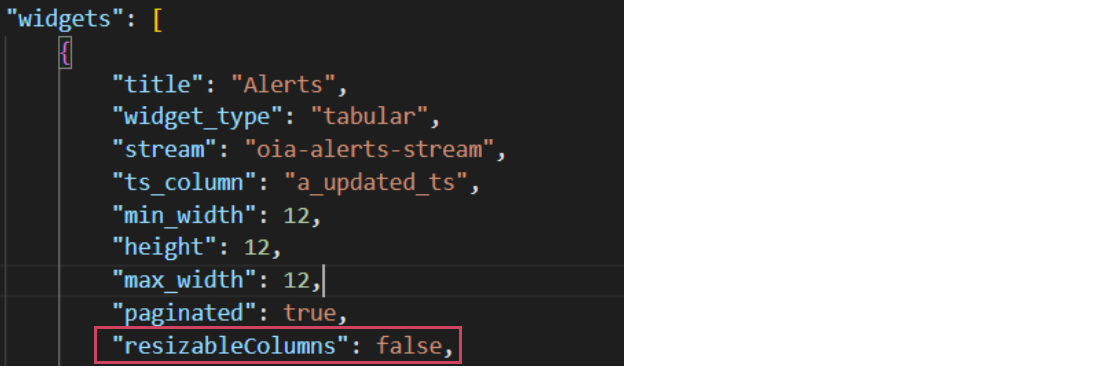
4. Collaboration Service changes
-
Post deployment, modify the following file inside each of the collaboration docker service
-
To get the container id of the collaboration service use the following command to see where the collaboration service is running
-
docker exec -it (container-id) bash
-
vi /usr/lib/python3.7/site-packages/cfxdimensions-app-collaboration/app.properties
a) waitq.loop.exec.delay.secs=300
b) waitq.active.incidents.exec.threads=1
-
docker restart (container-id)
1.4.2 Post Installation FSM Steps (Applicable only for installations with FSM)
1. Update FSM model:
https://macaw-amer.s3.amazonaws.com/releases/rdaf-platform/1.2.0/oia_ticketing_with_soothing_interval.yml
2. Deploy below Bundles from Configuration -> RDA Administration ->Bundles
3. Update Pipelines from links given below to the Published Pipelines
https://macaw-amer.s3.amazonaws.com/releases/rdaf-platform/1.2.0/pipelines/fsm_read_incident_stream.yml
4. Update Close BMC Ticket Blueprint to run every 5 minutes instead of the previous 15-minute interval.
5. Enable below service blueprints from Configuration -> RDA Administration -> Service Blueprints
-
FSM Read Incident Stream
-
FSM Read Alert Stream
-
Create Ticket
-
Update Ticket
-
Resolve Ticket
-
Close BMC Ticket
1.4.3 DNAC
Below are the steps to upgrade ONLY DNAC functionality
1. Deploy latest dna_center_bundle from Configuration → RDA Administration ** → Bundles → Click deploy** action row level for dna_center_bundle.
Note
Steps 2, 3 & 4 items dictionary/Template files can be downloaded from below
2. Upload Latest dictionary of Device Family Alias dictionary from Configuration → RDA Administration → Datasets and search for device_family_alias and Click on Manage Data action row level and Click on Import and upload latest device family dictionary and click on Save
3. In the same Datasets page look for dnac_host_info and Click on Manage Data action row level and Click on Import and upload the latest dnac host info file and click on Save.
Note
It is recommended to add new dataset instead of importing the file to existing dataset.
4. Latest DNAC HTML Template can be uploaded from Configuration → RDA Administration → Object Store. Click on Upload and provide name as dynamic_dnac_template.html then folder name as widget_labels and upload latest HTML template and select check box of Enable Overwrite and click on Add
5. In Configuration → RDA Administration → Pipelines → Published Pipelines. Need to modify dnac_add_sources pipeline by uncommenting the line of %% import_source = ‘DNAC_Alpharetta’.
1.4.4 BCS
Below are the steps to upgrade ONLY BCS functionality
- Deploy latest
dna_center_bundlebundle from Configuration → RDA Administration → Bundles → Click deploy action row level for bcs_operational_insights.