Add a Disk & Mount Point for GraphDB Service
Step-1: Login into VMware vCenter and click on edit settings of the RDA Fabric Infra VMs where GraphDB service is going to be installed.
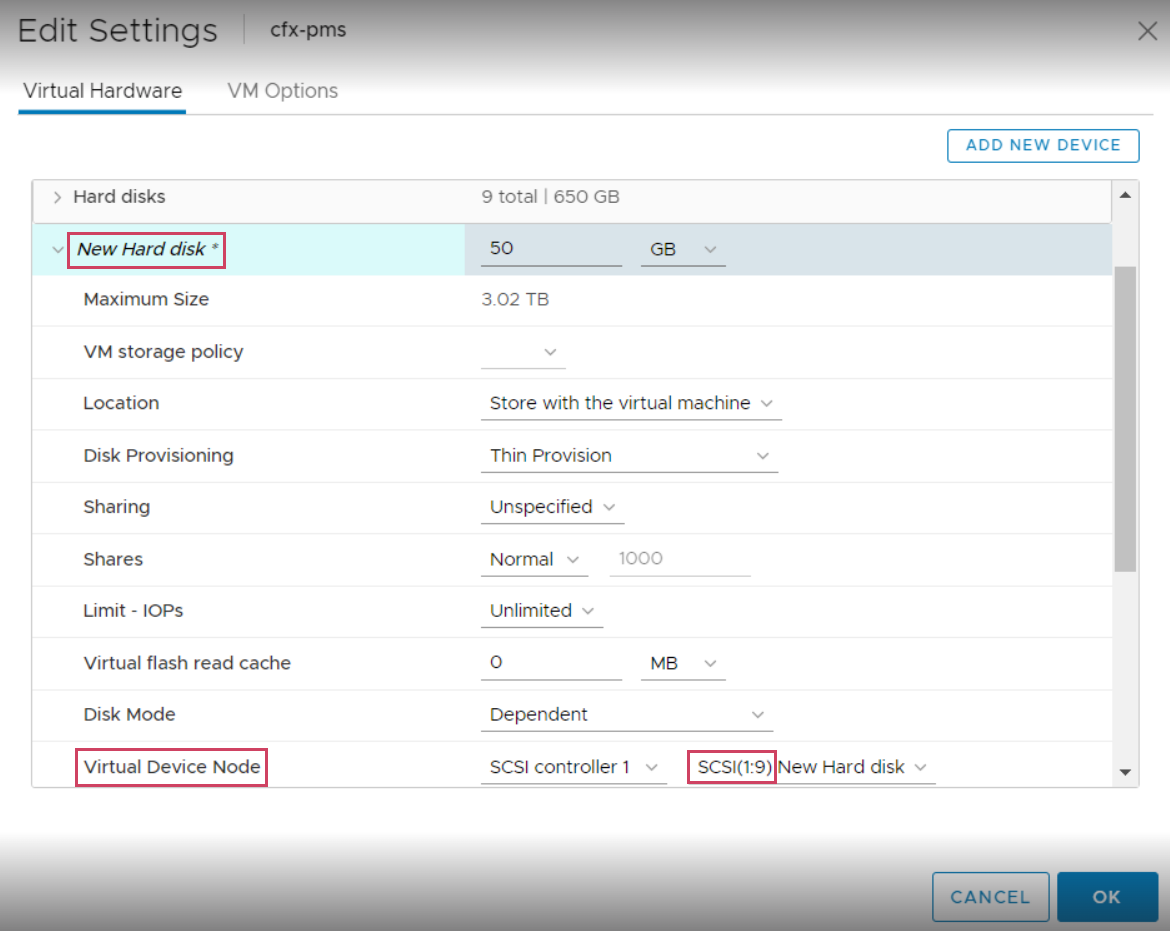
Step-2: Add a new SCSI disk and allocate an appropriate disk size. e.g., 50GB and save the configuration. This has to perform on all Infra VMs
Step-3: Edit the VM settings of RDA Fabric Infra VM again on which new disk was added and note down the SCSI Disk ID as shown below.
Step-4: Login into RDA Fabric Infra VM using any SSH client (ex: putty). Default username is rdauser
Step-5: Steps to Add and Mount a New Disk for GraphDB
- Rescan for New Disk
- Format the Disk
/dev/disk_name with the actual disk identifier (e.g., mkfs.xfs /dev/sdi).
- Create Mount Point
- Mount the Disk
/dev/disk_name with the actual disk identifier (e.g., mount /dev/sdi /graphdb).
- Change Ownership
- Verify Mount using below given command
Confirm the /graphdb mount point is listed.
- To get the UUID details please run the below command
- Add UUID Entry to the FSTAB
- To mount all filesystems use the below given command
- Exit Root Shell by using the below given command
- Verify Mount Point (After exiting root)
Filesystem                         Size  Used Avail Use% Mounted on
udev                                32G     0   32G   0% /dev
tmpfs                              6.3G   61M  6.3G   1% /run
/dev/mapper/ubuntu--vg-ubuntu--lv   48G   13G   33G  29% /
tmpfs                               32G     0   32G   0% /dev/shm
tmpfs                              5.0M     0  5.0M   0% /run/lock
tmpfs                               32G     0   32G   0% /sys/fs/cgroup
/dev/loop0                          64M   64M     0 100% /snap/core20/2264
/dev/loop1                          92M   92M     0 100% /snap/lxd/32662
/dev/loop3                          92M   92M     0 100% /snap/lxd/29619
/dev/loop2                          64M   64M     0 100% /snap/core20/2496
/dev/loop4                          45M   45M     0 100% /snap/snapd/23771
/dev/loop5                          45M   45M     0 100% /snap/snapd/23545
/dev/sdc                           150G  1.8G  149G   2% /opt
/dev/sdd                            15G  191M   15G   2% /kafka-logs
/dev/sde                            15G  140M   15G   1% /zookeeper
/dev/sdi                            50G  290M   50G   2% /graphdb
/dev/sdh                            25G  1.4G   24G   6% /opensearch
/dev/sda2                          1.5G  309M  1.1G  23% /boot
/dev/sdb                           100G   41G   60G  41% /var/lib/docker
/dev/sdf                            25G  1.4G   24G   6% /var/mysql
/dev/sdg                            50G  417M   50G   1% /minio-data
In the above example command output, the newly added disk was sdi and it's size is 50GB