RDA Packs
1. What is RDA Pack
RDA Pack is collection of various artifacts that are developed as part of a feature.
Example of a pack is vCenter Inventory which may consists of datasets, pstreams, pipelines, dashboards that are required to support the inventory collection.
A pack can include the following supported artifacts:
| Artifact | Artifact |
|---|---|
| Blueprints | Credentials |
| Dashboards | Icons |
| Pipelines | Stacks |
| Datasets (and initial data) | Persistent Streams (pstream, initial data) |
| GraphDB | Relationship Maps |
| TextFSM | Tags |
| User Groups | Team Configurations (specify id instead of name. Single-tenant supported in 8.1.0. Multi-tenant supported in 8.1.1) |
| Endpoints (Alerts, Incidents, and Messages — specify id instead of name. Single-tenant supported in 8.1.0. Multi-tenant supported in 8.1.1) | Mappings (Alerts, Incidents, and Messages — specify id instead of name. Single-tenant supported in 8.1.0. Multi-tenant supported in 8.1.1) |
| Correlation Policies (specify id instead of name. Single-tenant supported in 8.1.0. Multi-tenant supported in 8.1.1) | Suppression Policies (specify id instead of name. Single-tenant supported in 8.1.0. Multi-tenant supported in 8.1.1) |
| Formatting Templates (Supported in 8.1.1) | FSM Models (Supported in 8.1.1) |
| Dashboard Groups (Supported in 8.2.0) | Permission Groups (Supported in 8.2.0) |
| User Roles (Supported in 8.2.0) | Agents (Supported in 8.2.0) |
| Toolsets (Supported in 8.2.0) | AI Projects (Supported in 8.2.0) |
| AI Personas (Supported in 8.2.0) | Dynamic LOVs (Supported in 8.2.0) |
| Prompt Templates (Supported in 8.2.0) | data_access_policies (Supported in 8.2.0) |
| alert_rules (Supported in 8.2.0) | notification_channels (Supported in 8.2.0) |
1.1 Creation Policy Support
All artifact types support the creation_policy field, which determines how to handle existing artifacts during pack activation.
-
fail (default): The activation will fail if the artifact already exists.
-
skip: Skip creation if the artifact already exists and continue with other artifacts.
-
overwrite: Overwrite the existing artifact with the version from the pack.
The creation policy can be specified per artifact in the manifest.yaml file. If not specified, the default behavior is fail.
Please click here to view detailed explanation of Creation Policy.
1.2 Dashboards Menu Organization
Dashboards now support hierarchical menu folder paths using the menu_folder_path field, which accepts a list format.
-
Adding
menu_folder_pathto a Dashboard, Themenu_folder_pathfield should be included in the dashboard's definition JSON file. -
The first element in the list must always be Top Level. Subsequent elements define the hierarchical structure of the menu.
If a dashboard needs to appear under the Training section of the UI menu, the menu_folder_path should be set as follows:
2. Why RDA Packs
1. Feature as a Deliverable
-
Makes it easier to port a feature/app between deployments.
-
When a feature or an application is developed in one deployment or for one customer, it consists of several artifacts developed and tested over time. Copying these artifacts manually is time consuming and error prone.
2. Repeatable
- Makes features as repeatable deliverables to end customers.
3. Version Control of Features
- Makes version management of features easier.
3. Structure of RDA Packs
- RDA Pack is a
tar.gzfile of directory. There should be amanifest.yamlfile at the top level. Other files are optional.
3.1 Example Structure of RDA Pack tar.gz
-
manifest.yaml
-
Artifacts
-
Pstreams
- Pstream Definitions
-
Pipelines
- pipelines files in text format(.txt)
-
Dashboards
- Dashboard files in json format(.json)
-
Blueprints
- Service blueprint files in yaml format(.yaml)
-
Datasets
- Dataset files in csv format(.csv)
-
-
customer_level(Customer Scoped Artifacts)
-
Contains artifacts that are specific to a customer
-
May include: datasets, blueprints, credential
-
-
single_tenant(Single Tenant Scoped Artifacts)
-
Contains artifacts for the single tenant in an environment
-
May include: datasets, blueprints, credential
-
-
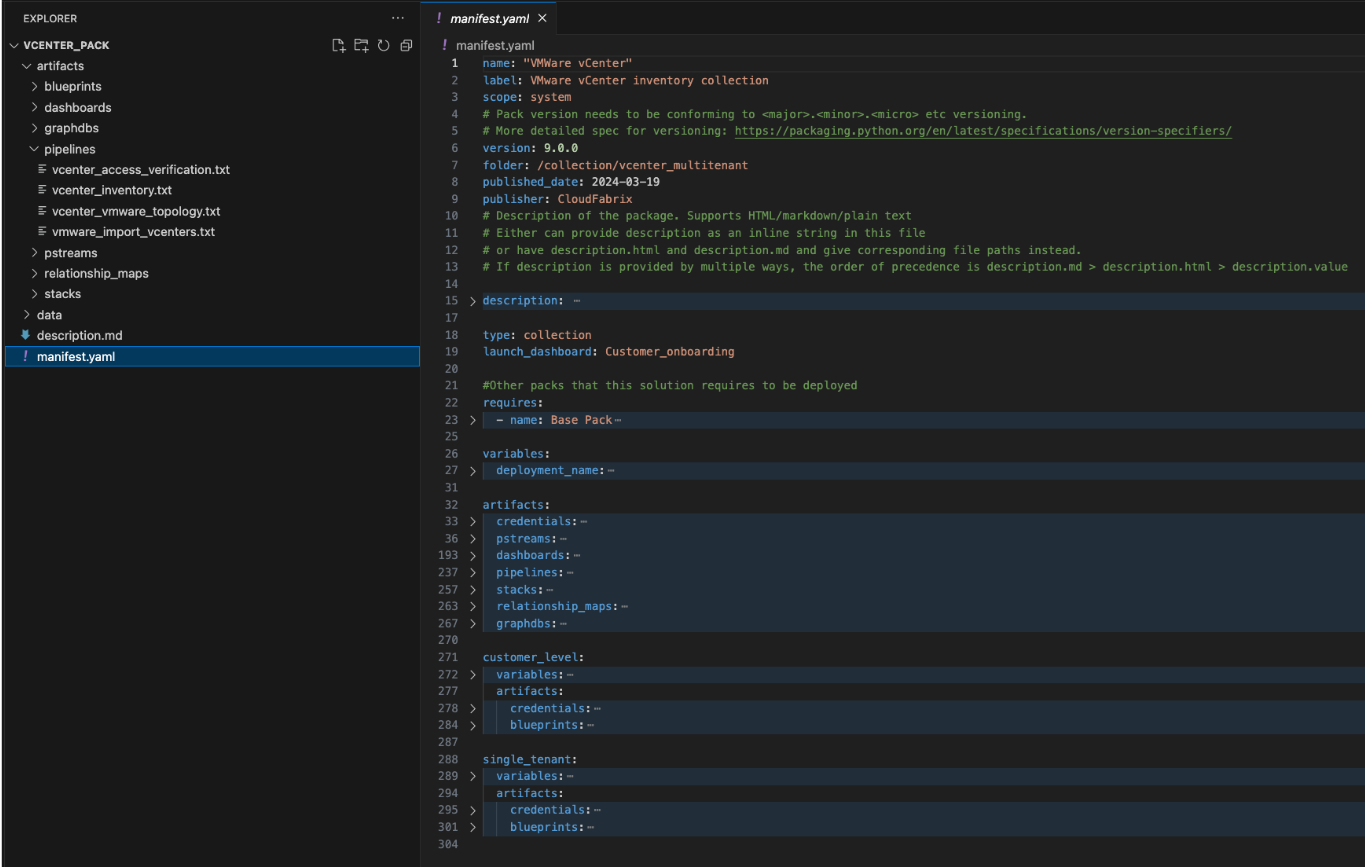
3.1.1 Manifest File Sections
Manifest file is the source of truth for a pack. It contains different sections which are listed below with examples.
-
Information
-
Artifact
-
Activation
-
Customer level
-
Single tenant
3.1.1.1 Information
This section contains the attributes that uniquely identifies a pack and lists down any dependencies the pack might have on other packs and /or fabric services.
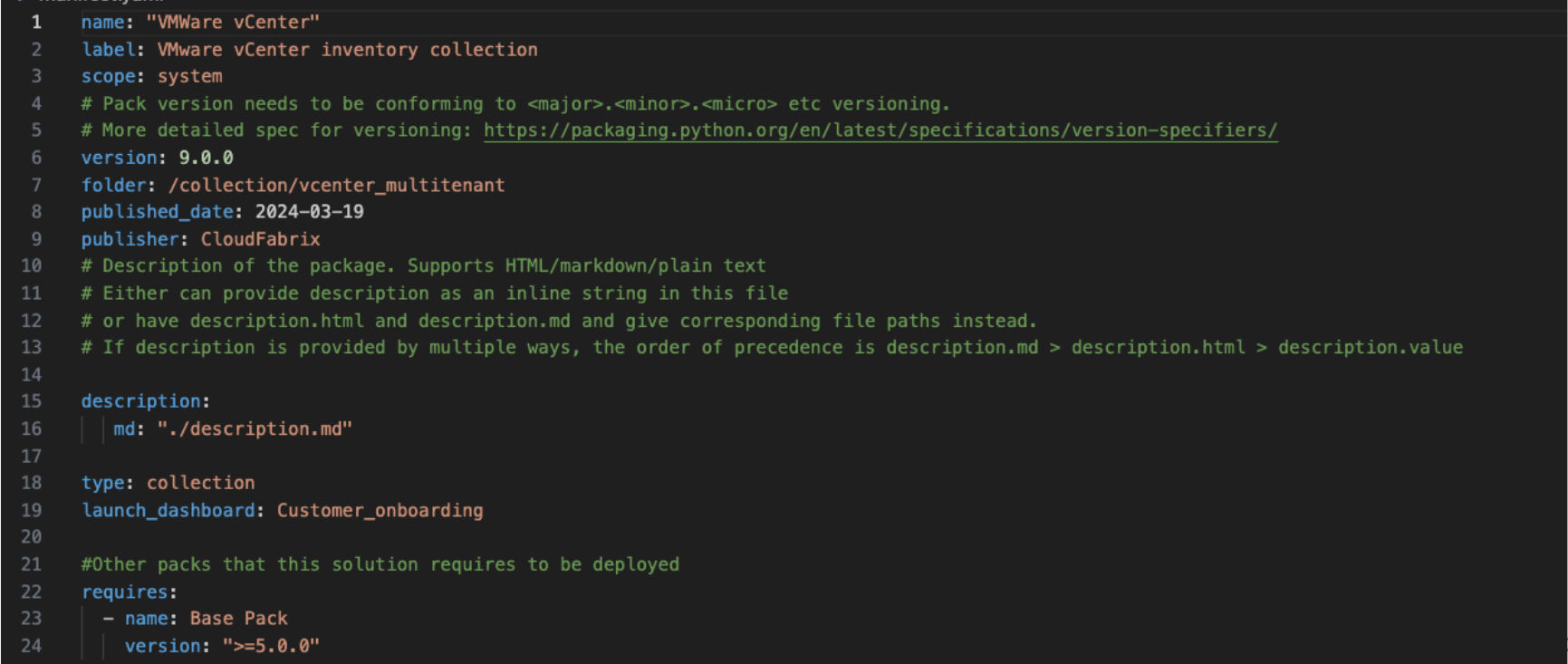
In the above given example the pack name is "VMware vCenter" version is 9.0.0 & it requires Base Pack of version >= 5.0.0 to be deployed.
3.1.1.2 Artifacts
Artifacts listed under this section will be created during activation and removed during deactivation.
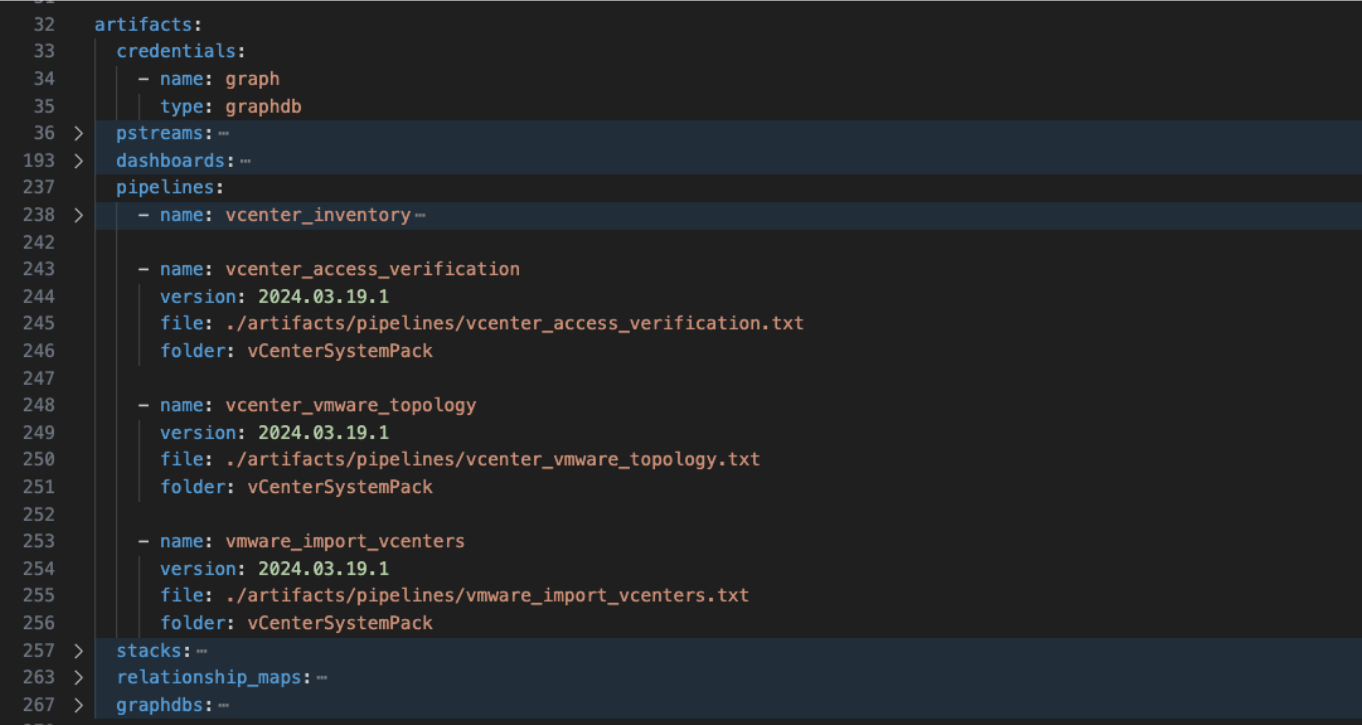
In the above given example Credentials, Pstreams, Dashboards, Pipelines & Stacks will be created upon activation and deleted upon deactivation.
3.1.1.3 Activation Actions
Note
Activation section is optional.
This section contains launch_dashboard, variables & run_on_activation entries.
If variables are specified then at the time of activation, the user will be prompted for the values of the variables.
pipelines that are listed as part of “run_on_activation” will be executed after the pack artifacts are successfully created.
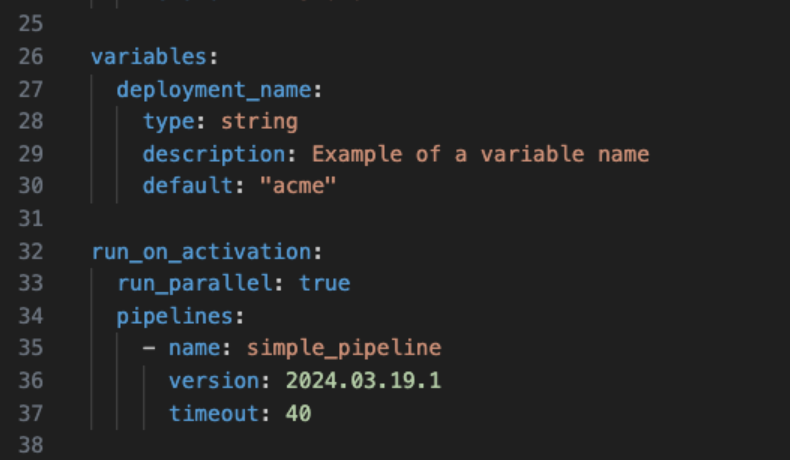
In the example shown above the user will be prompted for deployment_name and simple_pipeline will run upon successful creation of all artifacts
3.1.1.4 Customer Level
-
This section contains the artifacts that need to be created for different customers in a multi-tenant environment.
-
The artifacts are created with their names prepended with the customer tag.
-
This section can be enabled / disabled for different customers on as needed basis.
-
The customer level can only be enabled if the pack is in ACTIVATED state.
-
When customer level is disabled for a customer, all the artifacts created for that customer are deleted.

In the example shown above when the pack is enabled for, say customer with tag customer1 then credential & blueprint will be created with names customer1_vcenter-1 & customer1_vCenter 1.
3.1.1.5 Single Tenant
-
This section contains the artifacts that need to be created in a single tenant environment.
-
This section can be enabled after the pack is in ACTIVATED state.
-
When pack for single tenant is enabled, it creates the artifacts listed under single_tenant section in manifest.
-
When the single tenant is disable, the artifacts listed under single_tenant section are deleted.

In the example shown above when the pack is enabled for single tenant, credential & blueprint will be created with names vcenter-single-tenant & vCenter Single Tenant respectively.
4. RDA Packs Interface
4.1 Administration User Interface
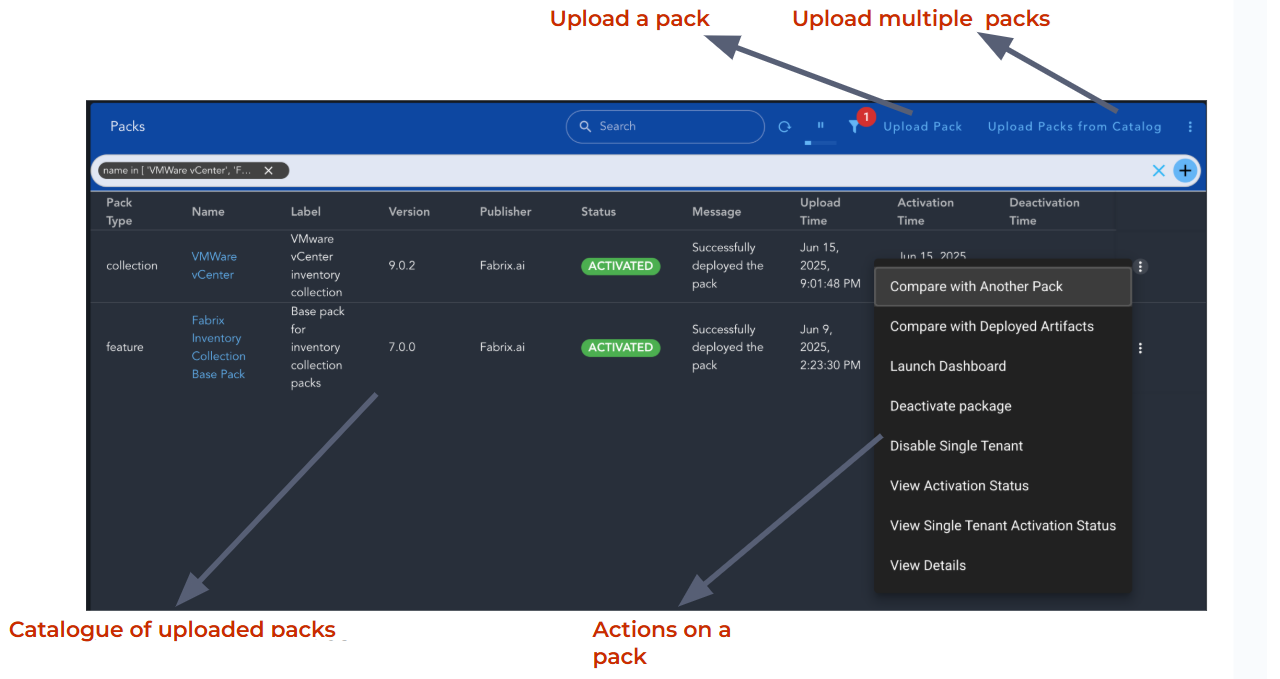
RDA Packs comes with User Interface to conveniently manage RDA Packs. To access RDA Packs UI, login to RDA portal as MSP Administrator then Navigate to RDA Administration -> Packs page, It provides following functionality to Administrators:
-
Catalog of Packs
- Displays the list of packs that are available in RDA Portal along with their statuses, Upload time & activation/deactivation time.
-
Upload RDA Packs
- Upload the
tar.gzfile of the pack to the portal.- Upload packs from catalog.
-
Compare Uploaded Packs
- Compare an uploaded pack with any other uploaded pack.
- Compare an uploaded pack with the deployed artifacts.
-
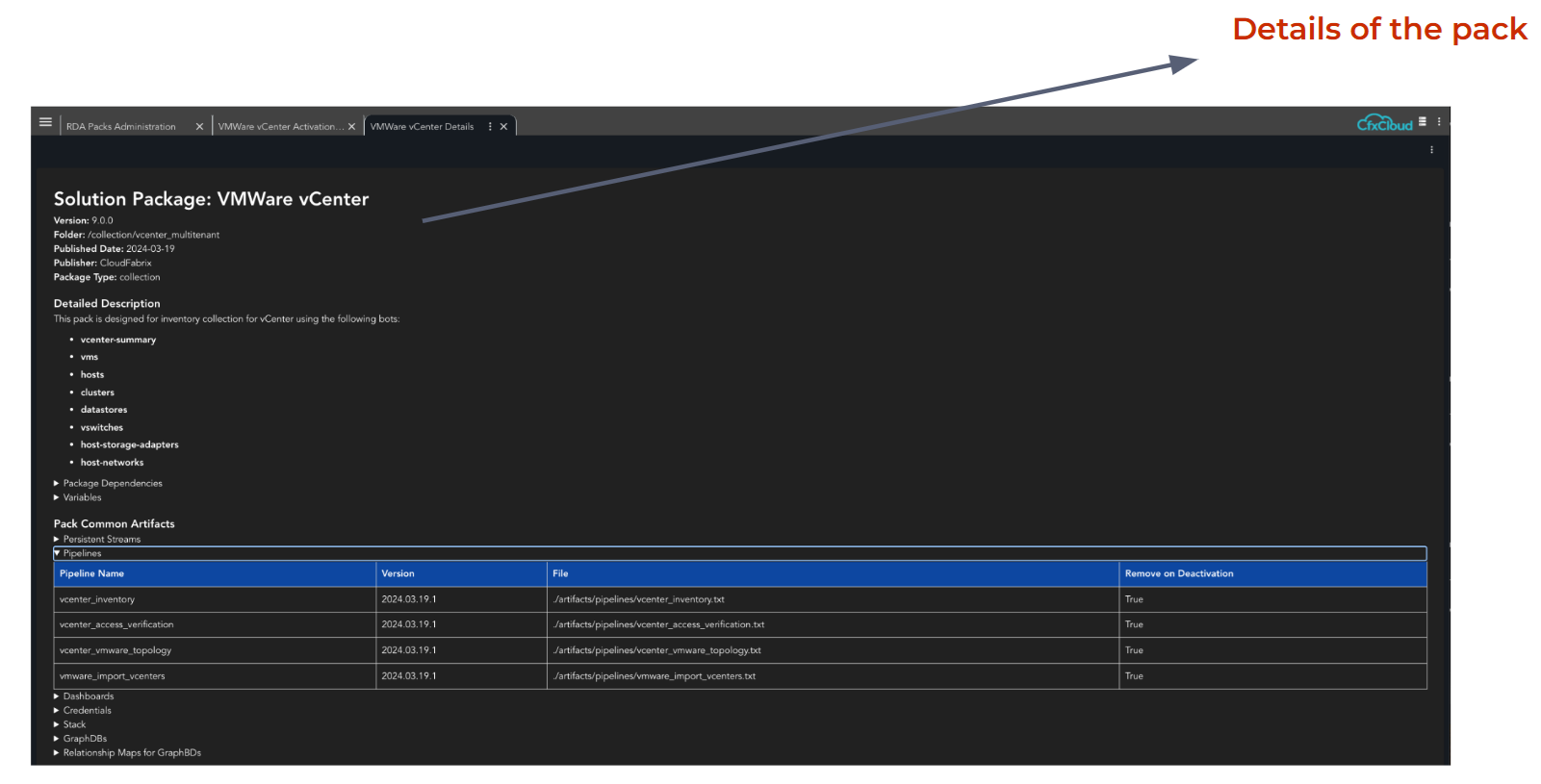
View documentation on the uploaded packs
- View information, artifacts, requirements and variables of the pack.
-
Activate uploaded packs
- Deploy and create the artifacts defined in the packs.
-
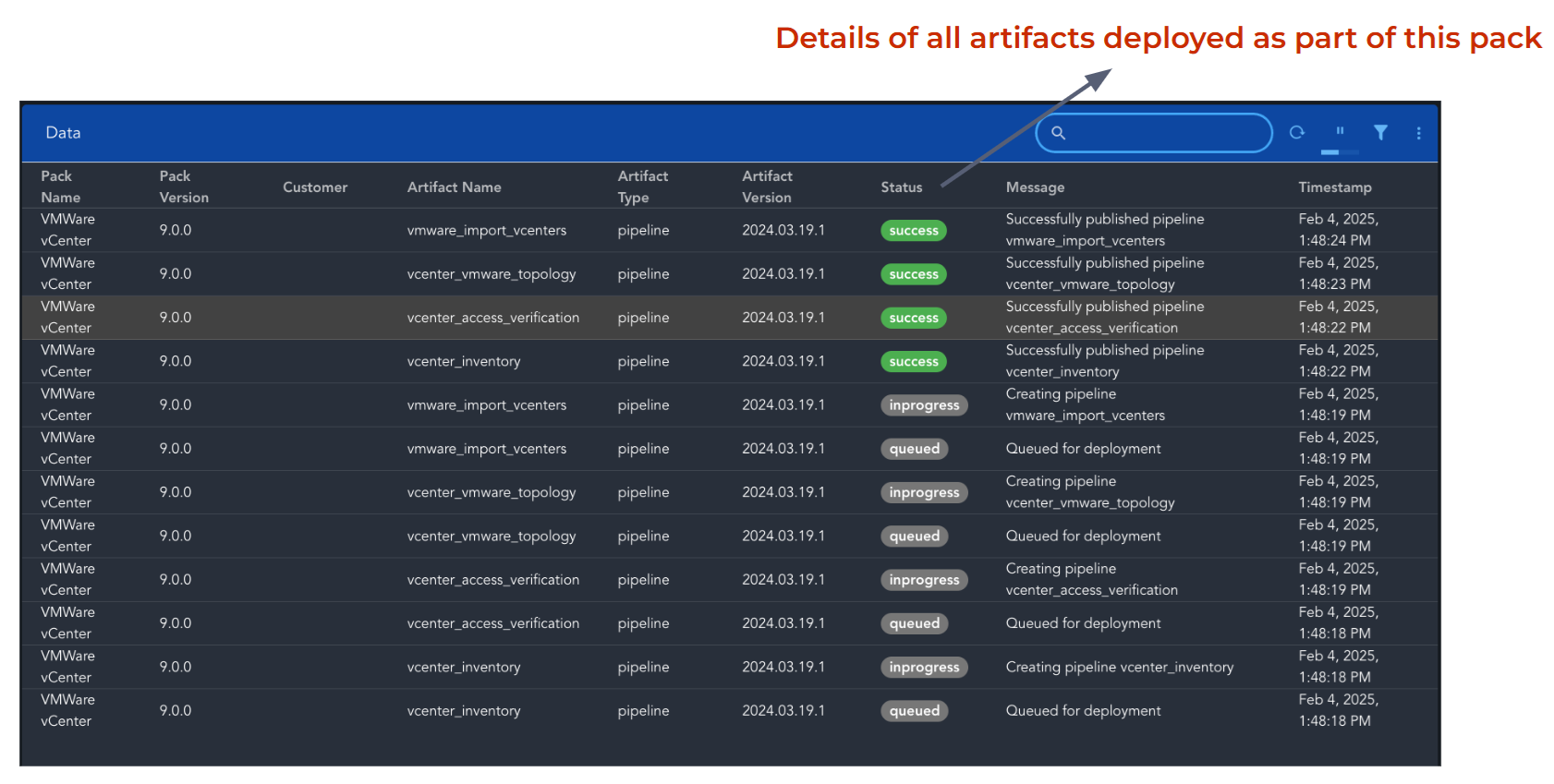
View the status of activated packs
- Displays the deployment details of different artifacts.
-
Launch Dashboard
- If launch_dashboard is specified in the manifest file then upon successful activation of pack, Launch Dashboard action will be available to navigate to that dashboard directly.
-
Deactivate packs
- Remove the artifacts that were deployed as part of the pack.
-
Remove uploaded packs
- Remove the uploaded
tar.gzfile of the pack. -
Optionally, if pack contains single_tenant section then Single Tenant related options become available after the pack is in
ACTIVATEDstate.
4.2 Single Tenant Administration User Interface
RDA Packs that contains single tenant section following menu options are available
1) Enable Single Tenant : Will be available if single_tenant section exists in the pack and pack is ACTIVATED. Creates the artifacts that are listed in single_tenant section in the manifest.
2) View Single Tenant Activation Status : Will be available when the pack is enabled for Single Tenant. Displays the deployment details of different artifacts.
3) Disable Single Tenant : Will be available when the pack is enabled for single tenant. Removes the artifacts that were created for single tenant.
4.3 Customer Level Administration User Interface
-
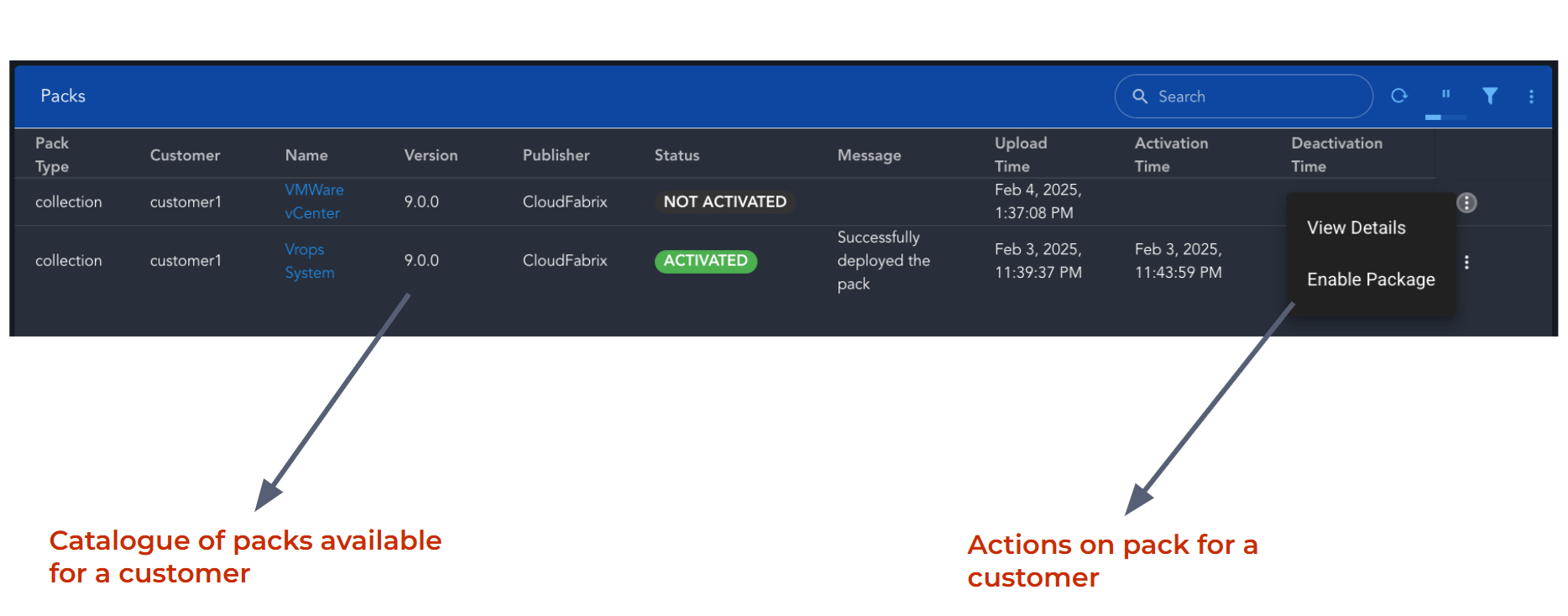
The Customer Packs page will display all the packs that can be activated for selected customer. This page will be available to customer administrator in multi tenant environment.
-
Following management options are available:
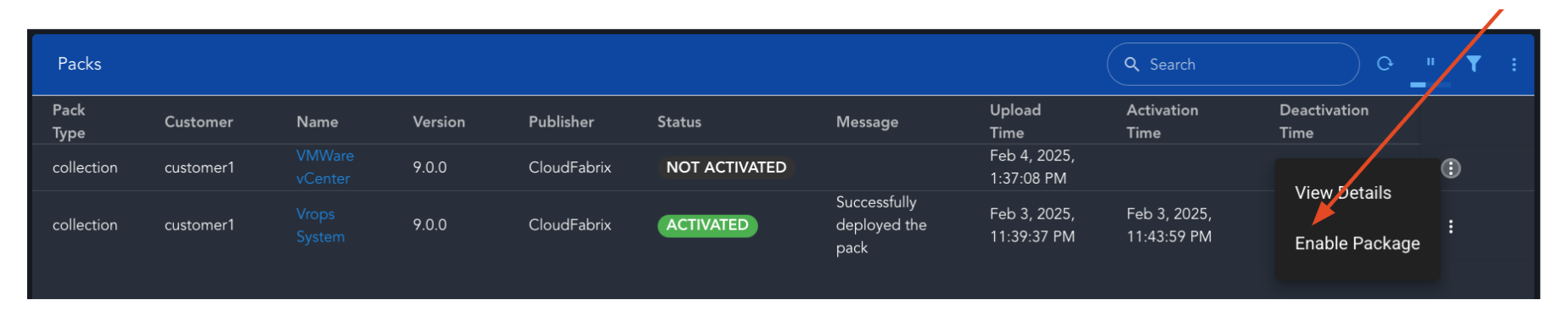
1 Enable Package : Will be available if customer_level section exists in the pack and pack is ACTIVATED. Creates the artifacts that are listed in customer_levelsection.
2 View Activation Status : Will be available when the pack is enabled for that customer. Displays the deployment details of different artifacts.
3 Disable Package : Will be available when the pack is enabled for that customer. Removes the artifacts that were created for that customer.
5 RDA Packs Command Line
In addition to User Interface for management of packs, administrator can also use “rdac pack” commands to perform various actions that are available through UI. Following commands are available.
upload                   Upload RDA Pack
remove                   Remove RDA Pack
list                     List RDA Packs
activate                 Activate RDA Pack and deploy corresponding common artifacts
enable-single-tenant     Enable RDA Pack single tenant and deploy single tenant scoped artifacts
enable-customer          Enable RDA Pack for a customer and deploy customer scoped artifacts
deactivate               Deactivate RDA Pack and delete corresponding common artifacts
disable-customer         Disable RDA Pack for a customer and delete customer scoped artifacts
disable-single-tenant    Disable RDA Pack for single tenant and delete single tenant scoped artifacts
compare                  Compare a pack against the deployed artifacts or another pack.
create                   Create a RDA Pack.
For more details on these commands please click here
6 RDA Packs Deployment Steps
Prerequisite
- If one pack depends on another, then the parent pack must be deployed first.
- Follow steps 1 and 2 to upload and activate the parent pack.
High level steps
1) Upload the pack.
2) Activate the pack.
Single Tenant Environment
3) Enable the pack for single tenant.
4) Once the pack is enabled, Launch Dashboard option can be used to directly navigate to the dashboard.
Multi Tenant Environment
5) After the pack is activated, customer administrator can enable the pack for customer.
6) Once the pack is enabled for a customer, users can start using the pack from Customer Ops page. Customer ops page will be available to users in multi tenant environment.
6.1 RDA Packs Upload
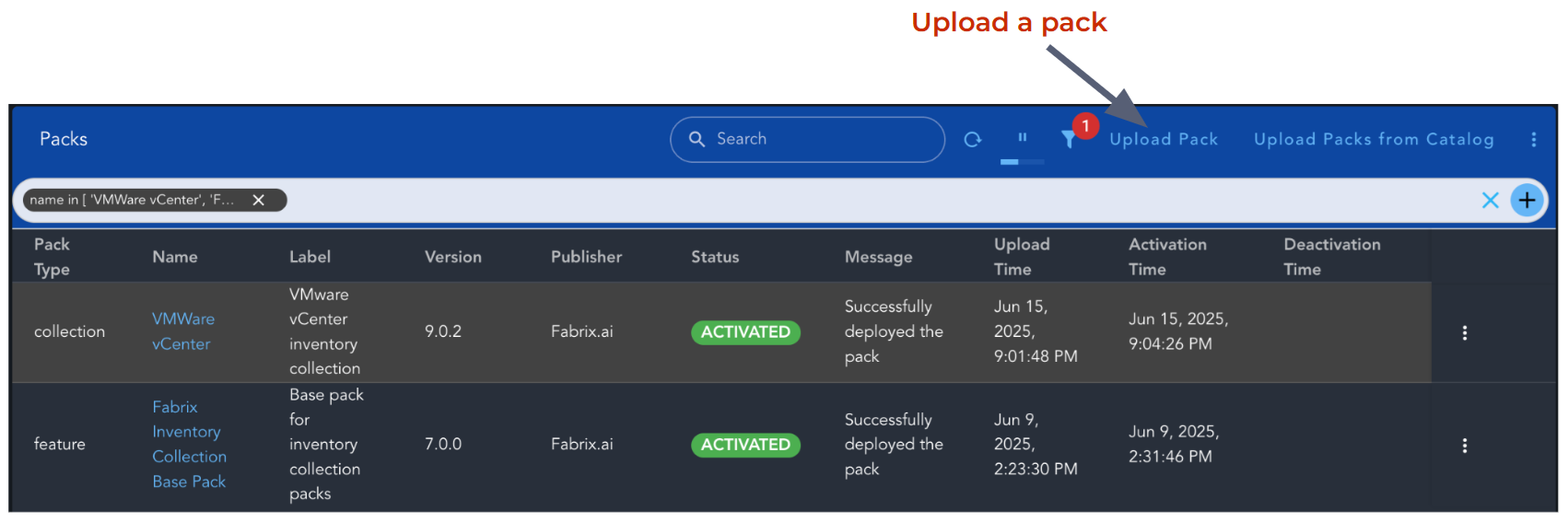
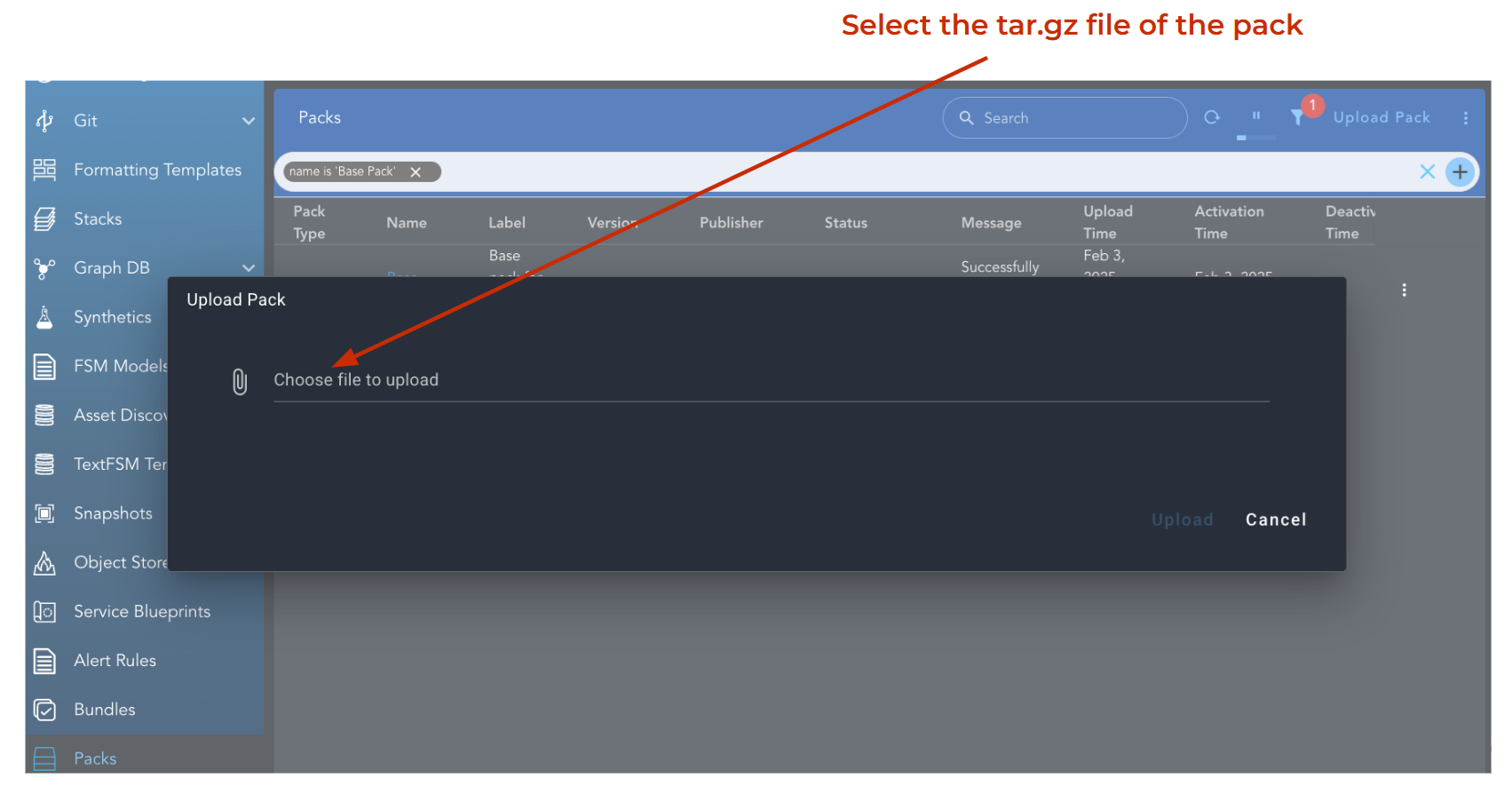
Login to RDA Portal as an Administrator. Go to RDA Administration -> Packs.
Use Upload option to upload the tar.gz file of a pack.
Upload action performs a compatibility check to ensure the pack can be used with your current RDAF Fabric Service version. For packs that are not compatible with the deployed RDAF Fabrix service version, an error is reported in the UI.
6.1.1 Upload Pack from Catalog
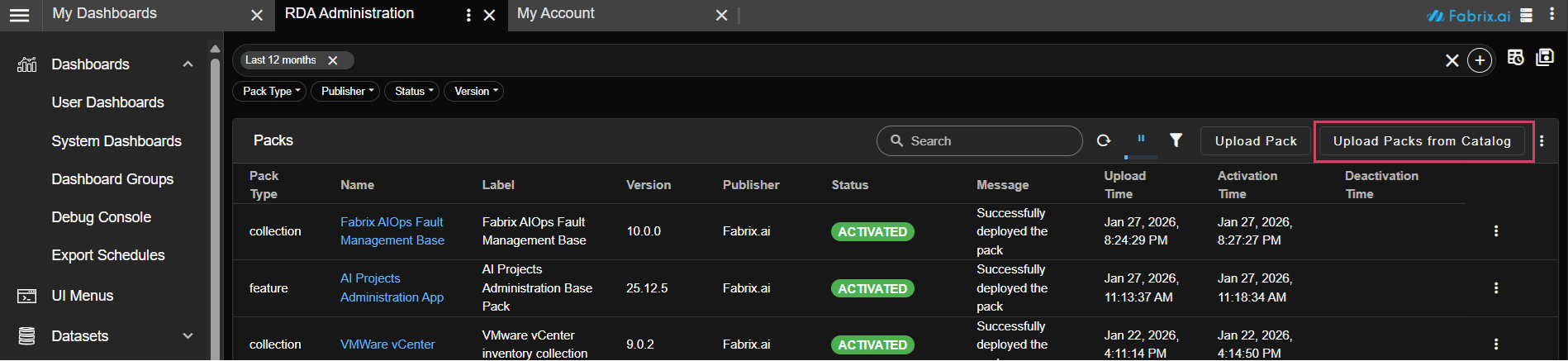
The Upload Packs from Catalog feature allows users to browse, select, and upload RDA packs directly from the public repository to their environment.
-
The catalog displays all available packs from the RDA Packs Public Repository in a multi-select table.
-
For each pack, the catalog shows:
- Required RDAF Fabric Services
- Required Base Packs
- A compatibility check is performed automatically to ensure the pack can be used with your current RDAF Fabric Service version.
- Only compatible packs are displayed, so users can safely select packs without worrying about version conflicts.
Using the Catalog
a) Open the Upload Packs Catalog
- Navigate to the Catalog section from the RDAF dashboard.
b) Browse Available Packs
-
The catalog shows all packs that are currently compatible with your RDAF environment.
-
For each pack, check the required Fabric Services and Base Packs.
c) Select Packs
- Use the multi-select checkboxes to select one or more packs you wish to upload.
d) Upload Packs
-
Once you have selected the desired packs, click Upload.
-
The system will process the packs and make them available in your environment.
Note
Incompatible packs will not be displayed, ensuring only valid options are available.
Ensure RDAF Fabric Services are up-to-date to maximize compatibility with new packs.
6.2 RDA Packs - Activate Pack
- From the Packs page, choose Activate Package menu option to activate the pack.
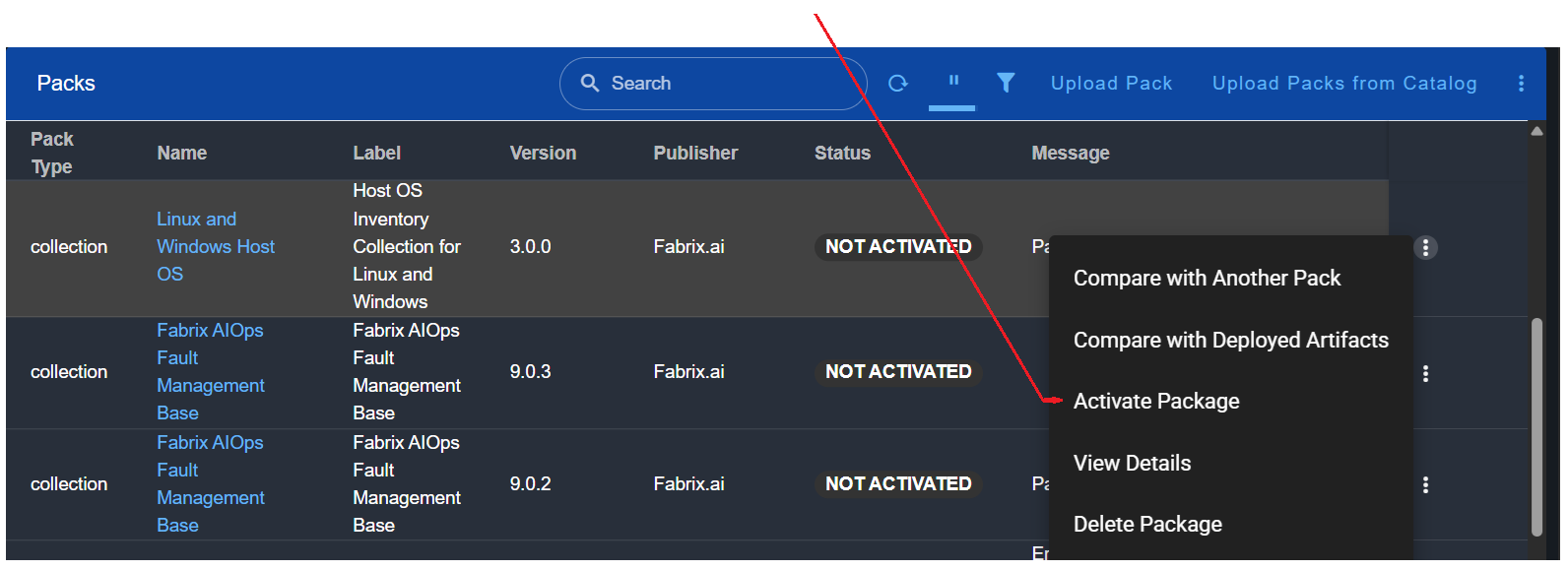
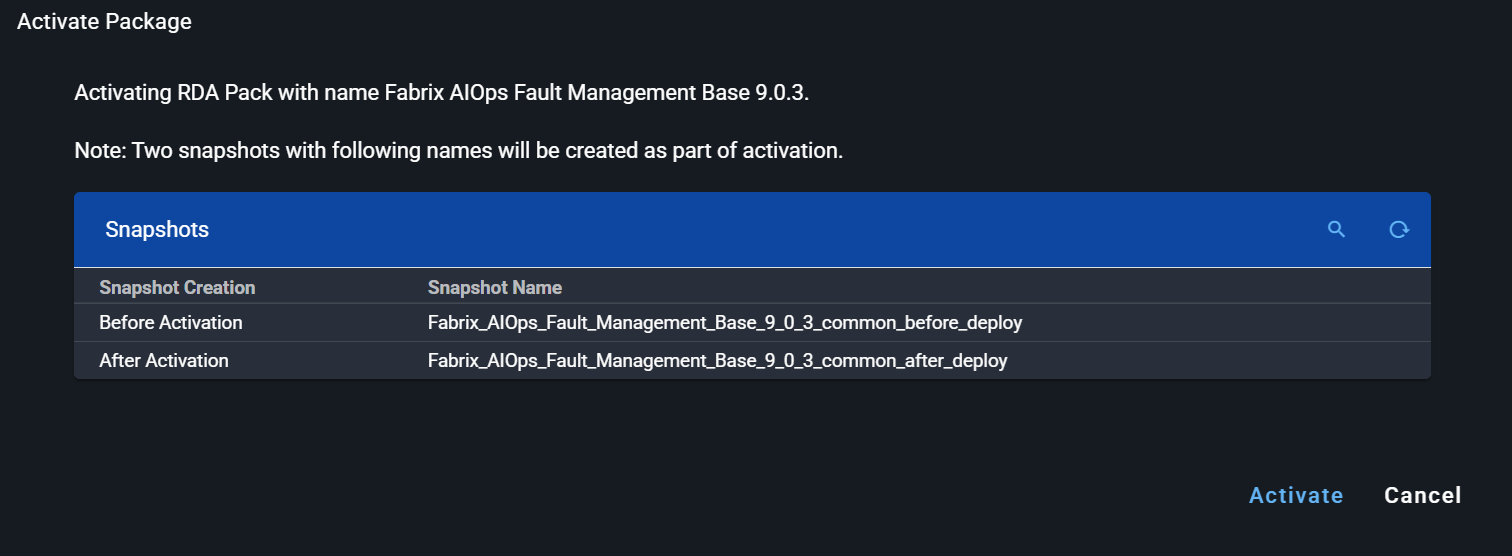
As part of the solution pack activation process, two snapshots are automatically created to safeguard artifacts:
-
Before artifact creation begins
-
After artifact creation completes successfully
Snapshot Naming Convention The snapshots follow this naming format:
Before Creation:
<safe_pack_name>_<safe_pack_version>_<deploy_type>_before_deploy
After Creation:
<safe_pack_name>_<safe_pack_version>_<deploy_type>_after_deploy
Where,
-
safe_pack_name and safe_pack_version = spaces and "." replaced with "_"
-
deploy_type = common or single_tenant or
Note
These snapshots enable manual recovery of artifacts that might be unintentionally overwritten during the deployment process. After selecting the "Activate Pack" option, an Activate Pack dialog is displayed, listing the names of the two generated snapshots for reference.
6.3 RDA Packs - Enable for Single Tenant
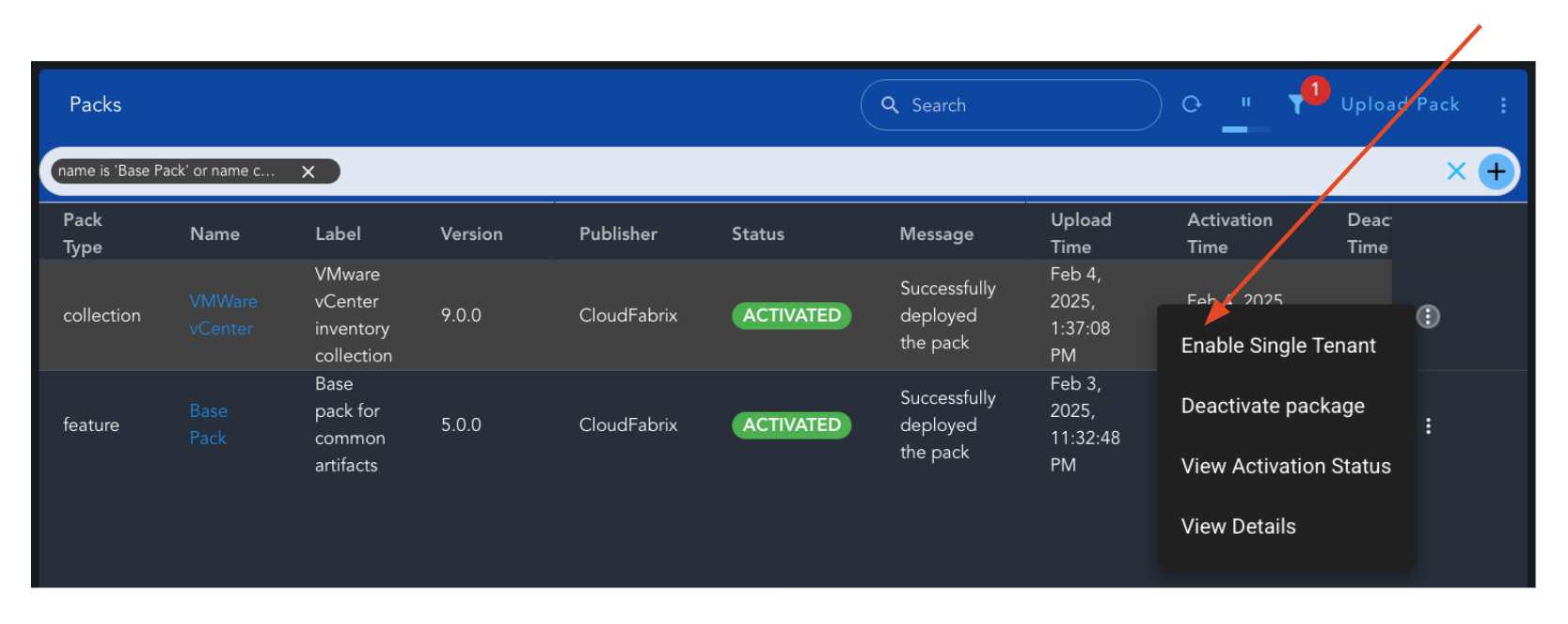
- After the pack is ACTIVATED, Enable Single Tenant menu option to enable the pack.
Note
Enable Single Tenant option will only be visible when pack is ACTIVATED
6.4 RDA Packs - Access Main Dashboard for Single Tenant
-
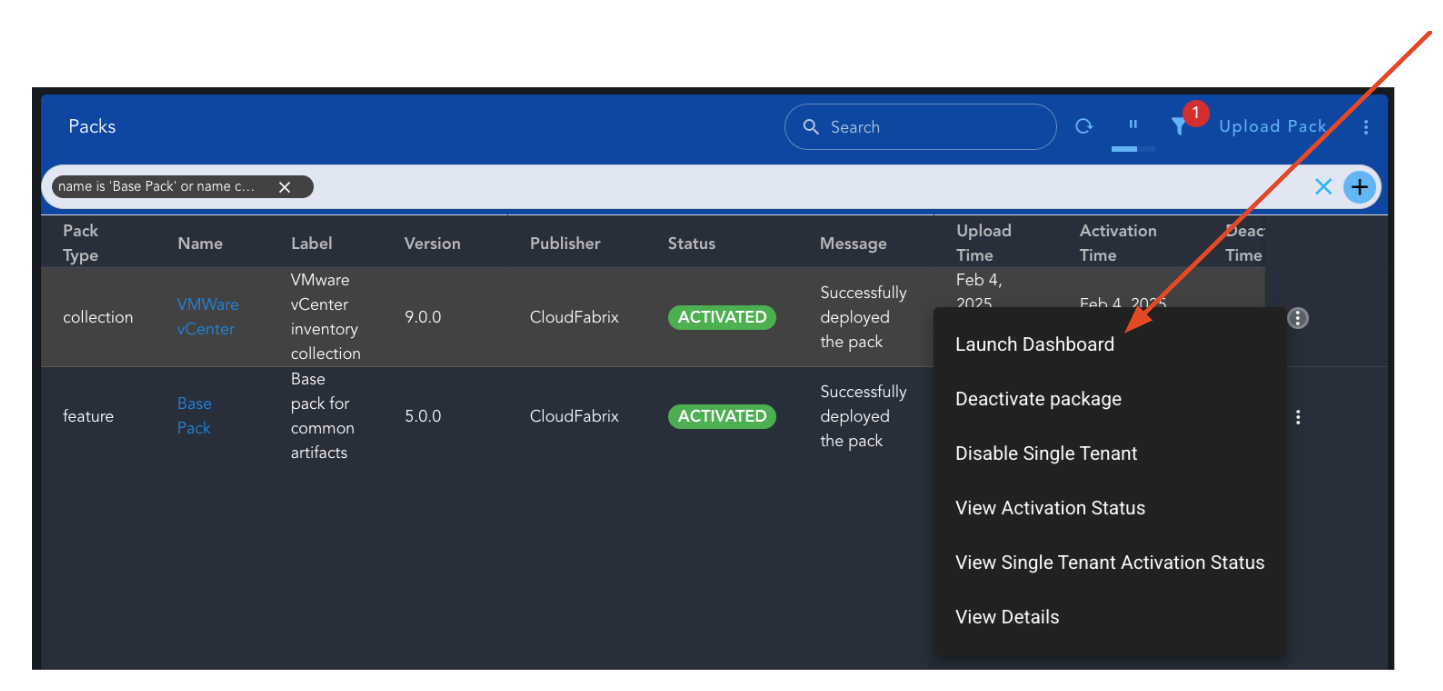
After the pack is enable for single tenant, Launch Dashboard menu option can be used to navigate to the main dashboard of the pack.
-
Administrator can make the main dashboard visible to the users upon login.
6.5 RDA Packs - Enable for a Customer in Multi Tenant
In multi-tenant environment Admin Ops page will be available for customer administrators.
After the pack is ACTIVATED, customer administrator can use the customer Admin page to enable the pack for that customer.
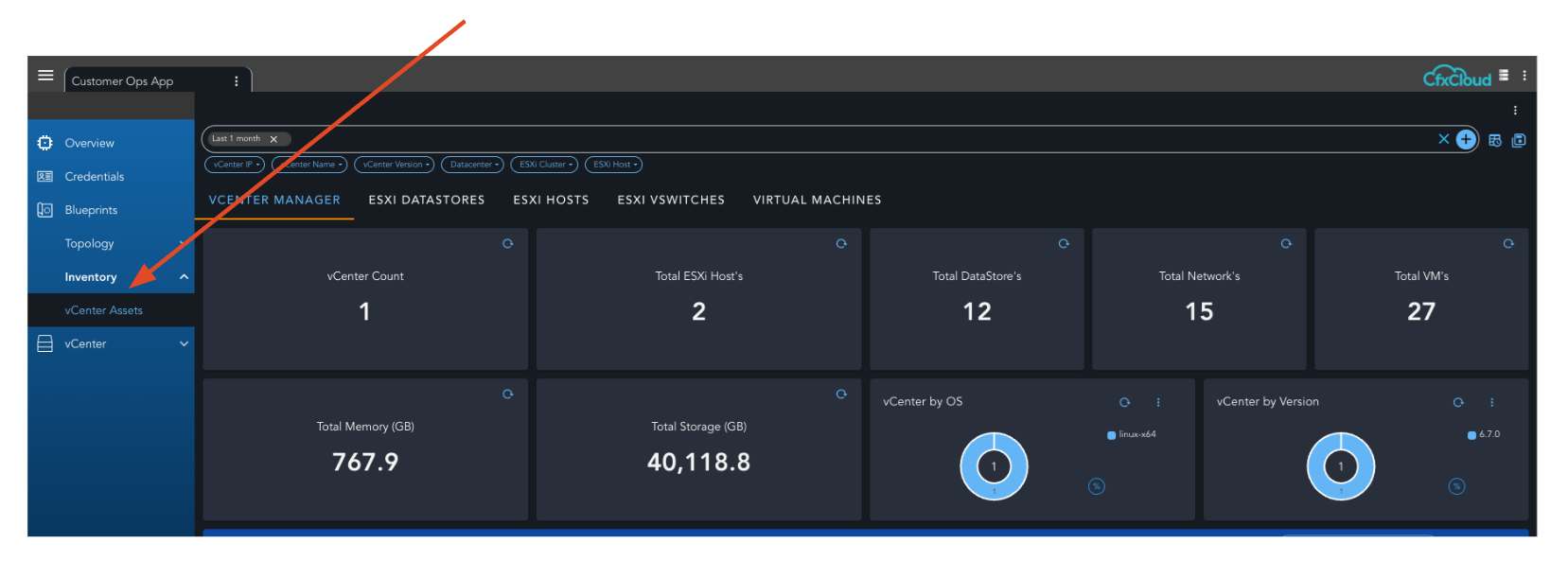
6.6 RDA Packs - Access Main Dashboard for Multi Tenant
After the pack is enabled for a customer, the pages of the dashboard will dynamically get added to the Customer Ops page.
7 Compare RDA Packs
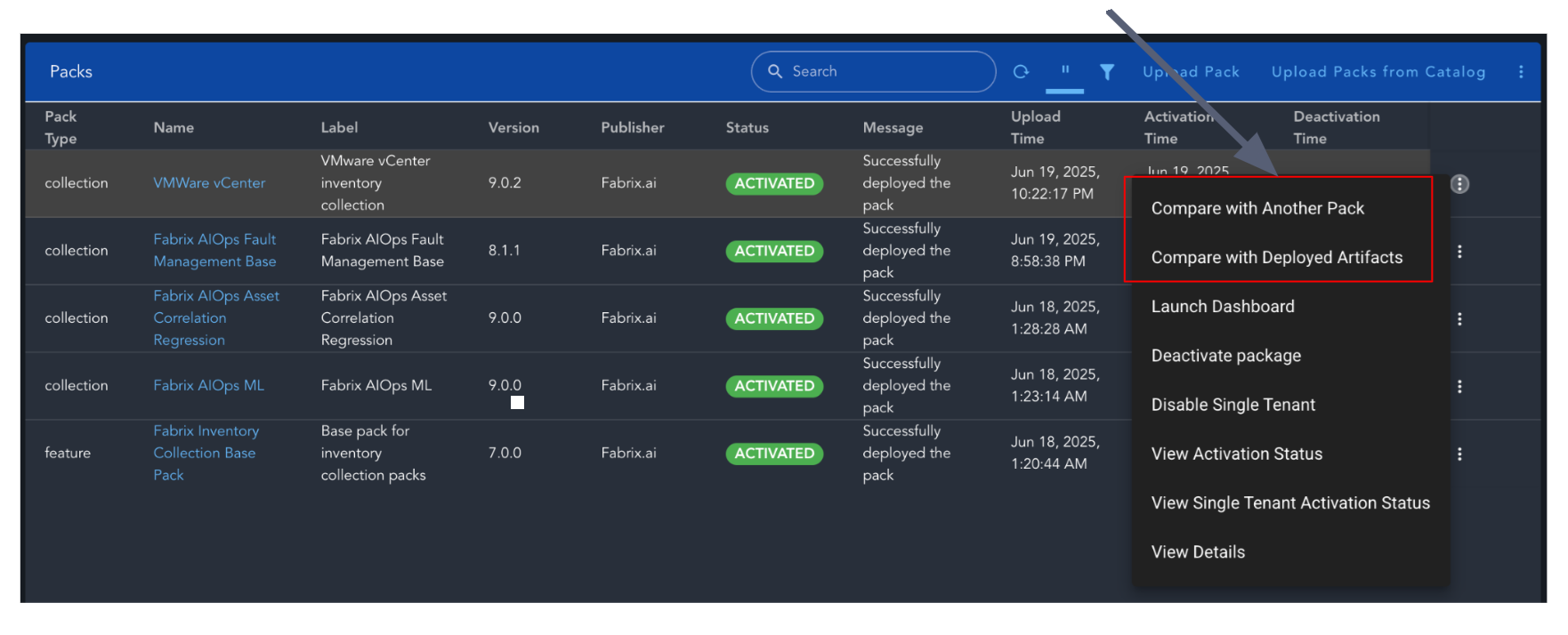
An uploaded pack can be compared with
- Existing artifacts
- Another pack
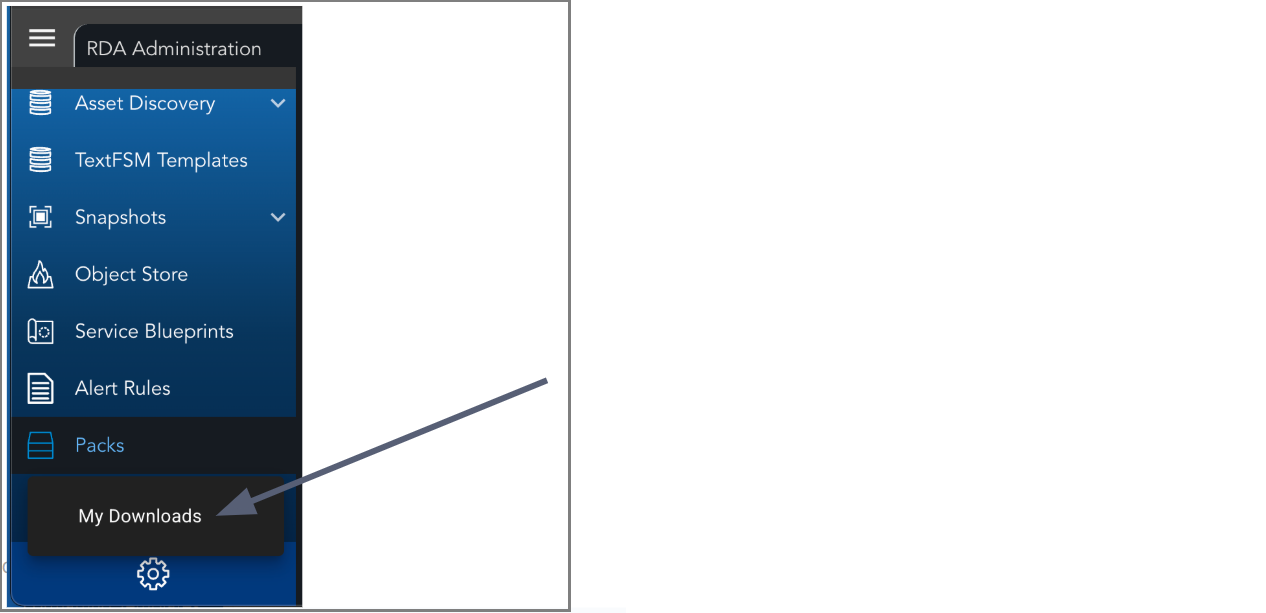
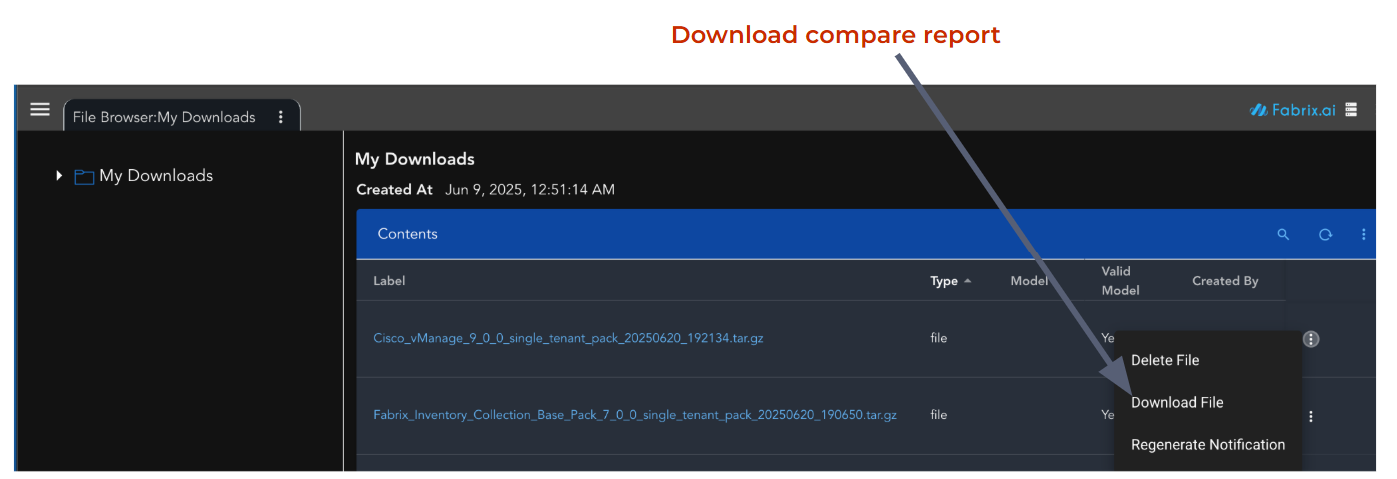
In both the cases the report tar file is generated and is available for download from MyDownload page.
Report Filename Format
<safe_pack_name>_<safe_pack_version>_<compare_type>_<timestamp>
Where
-
safe_pack_name and safe_pack_version: All spaces and periods (.) are replaced with underscores (_)
-
compare_type: Indicates the comparison type either deployed or pack.
One of the Compare option can be selected from the menu option for a pack.
The HTML generated report can be downloaded from the My Downloads page in the RDA Portal.
8 Create RDA Pack from Cli
-
rdac pack create command can be used to create packs.
-
pack create supports
- Create pack with all supported artifacts that exists in the RDA deployment.
- Create pack with specified artifacts and all their dependencies.
-
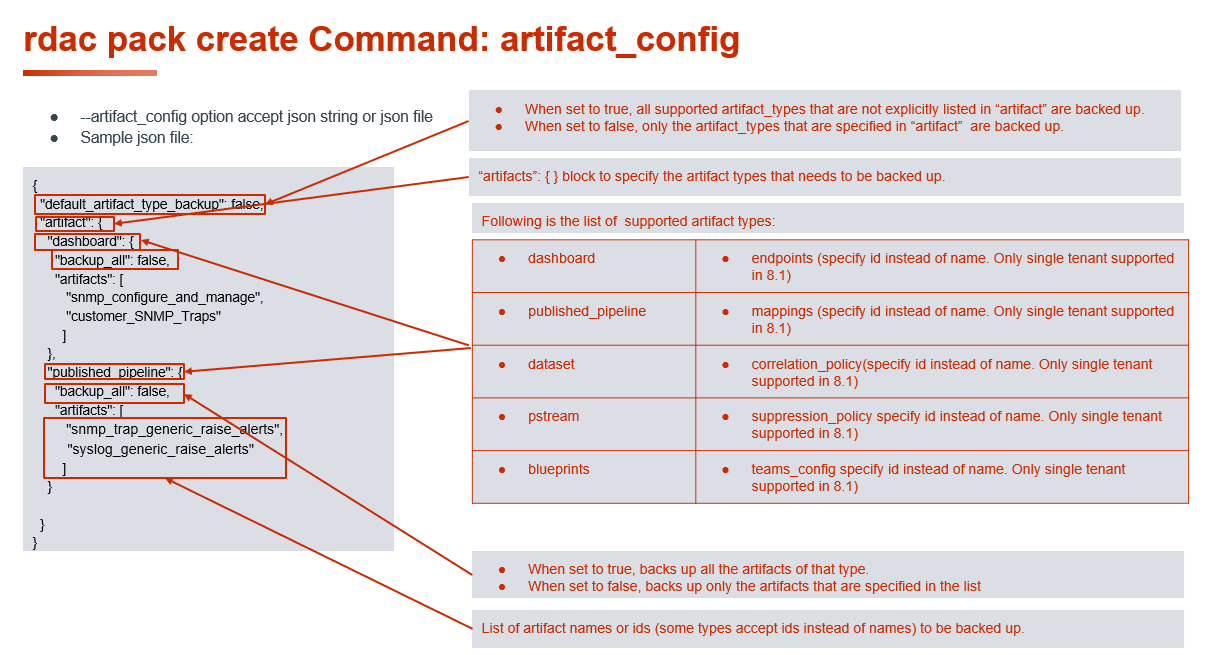
rdac pack create –help command output
usage: pack [-h] --name PACK_NAME --version PACK_VERSION [--upload]
            [--artifact_config ARTIFACT_CONFIG] [--no-dependencies]

options:
  -h, --help            show this help message and exit
  --name PACK_NAME      Pack name. Must be unique.
  --version PACK_VERSION
                        Pack version. Must be unique.
  --upload              Uploads the created RDA Pack
  --artifact_config ARTIFACT_CONFIG
                        JSON string specifying artifact backup configuration.
                        Example: '{"default_artifact_type_backup": false,
                        "artifact": {"dashboard": {"backup_all": false,
                        "artifacts": ["topology-details-app-with-graphdb",
                        "dashboard-.*", ".*-app"]}}}'. Artifact names support
                        both exact matches and regex patterns. Regex patterns
                        use Python regex syntax (e.g., 'dashboard-.*',
                        '.*-app', 'app-\d+'). If
                        'default_artifact_type_backup' is true, all artifact
                        types not listed in 'artifact' will also be backed up.
  --no-dependencies     Exclude dependencies from pack (default: include
                        dependencies).
8.1 RDA Pack Creation and Direct Upload Example Output
RDA Pack created & uploaded directly to packs using –upload argument.
rdauser@infra107-75:~$ rdac pack create --name sys_3 --version 3.0.3 --artifact_config '{\"default_artifact_type_backup\": false, \"artifact\": {\"dashboard\": {\"backup_all\": false, \"artifacts\": [\"v-multiple-bar-dashboard_for_app\"]}}}' --upload
Wait for 30 seconds... Collecting artifacts for Pack: sys_3 version: 3.0.3
Creating Pack: sys_3 version: 3.0.3
Saving artifact file: snapshot-artifacts/Dashboard/v-multiple-bar-dashboard_for_app.json
RDA Pack manifest.yaml generated
RDA Pack dependency overview generated
Generating Pack file: sys_3.tar.gz
Uploading Pack: sys_3 version: 3.0.3 file: sys_3.tar.gz
RDA Pack: sys_3 created successfully
8.2 RDA Packs – Default Creation of All Supported Artifacts
RDA Pack creates & saves all existing supported artifacts, If no particular artifact is specified.
rdauser@infra107-75:~/packs_demo$ rdac pack create --name demo3 --version 1.0.0
Wait for 30 seconds... Collecting artifacts for Pack: demo3 version: 1.0.0
Creating Pack: demo3 version: 1.0.0
Saving artifact file: snapshot-artifacts/Blueprint/Alerts Enricher.json
Saving artifact file: snapshot-artifacts/Blueprint/Blueprint_2023_02_16.json
Saving artifact file: snapshot-artifacts/Blueprint/Metric Data Collection for IRM.json
Saving artifact file: snapshot-artifacts/Blueprint/OIA Source Stream Merger.json
Saving artifact file: snapshot-artifacts/Dashboard/Authentication Servers.json
Saving artifact file: snapshot-artifacts/Dashboard/Image-widget-Z-dash.json
Saving artifact file: snapshot-artifacts/Dashboard/NIM_Benchmarking_duplicate_dashboard.json
Saving artifact file: snapshot-artifacts/Dashboard/agentic-ai-analytics.json
Saving artifact file: snapshot-artifacts/Dashboard/ai-admin-manage-user-group.json
Saving artifact file: snapshot-artifacts/PublishedPipeline/sample-servicenow-incidents.txt
Saving artifact file: snapshot-artifacts/PublishedPipeline/shaded-stream.txt
RDA Pack manifest.yaml generated
RDA Pack dependency overview generated
Generating Pack file: demo3.tar.gz
RDA Pack: demo3 created successfully
rdauser@infra107-75:~/packs_demo$ ls
artifact_t1.json  demo1.tar.gz  demo2.tar.gz  demo3.tar.gz  demo_README.txt  demo.tar.gz
rdauser@infra107-75:~/packs_demo$
Note
System-defined artifacts are automatically excluded during pack creation to prevent including platform-specific artifacts that should not be packaged.
Artifacts Type
-
dashboard
-
published_pipeline
-
dataset
-
pstream
-
blueprints
-
endpoints (specify id instead of name. Single-tenant supported in 8.1.0. Multi-tenant supported in 8.1.1)
-
mappings (specify id instead of name. Single-tenant supported in 8.1.0. Multi-tenant supported in 8.1.1)
-
correlation_policy (specify id instead of name. Single-tenant supported in 8.1.0. Multi-tenant supported in 8.1.1)
-
suppression_policy (specify id instead of name. Single-tenant supported in 8.1.0. Multi-tenant supported in 8.1.1)
-
teams_config (specify id instead of name. Single-tenant supported in 8.1.0. Multi-tenant supported in 8.1.1)
-
Formatting Templates (Supported in 8.1.1)
-
FSM Models (Supported in 8.1.1)
-
dashboard_groups (Supported in 8.2.0)
-
permission_groups (Supported in 8.2.0)
-
user_roles (Supported in 8.2.0)
-
agents (Supported in 8.2.0)
-
toolsets (Supported in 8.2.0)
-
ai_projects (Supported in 8.2.0)
-
ai_personas (Supported in 8.2.0)
-
dynamic_lovs (Supported in 8.2.0)
-
prompt_templates (Supported in 8.2.0)
8.3 RDA Pack Creation with artifact_config (JSON File)
RDA Pack created using artifact_config argument with JSON file.
While creating pack, it also retrieves its dependent artifacts and saves them into packs.
rdauser@infra107-75:~/packs_demo$ cat artifact_t1.json
{
  "default_artifact_type_backup": false,
  "artifact": {
    "dashboard": {
      "backup_all": false,
      "artifacts": [
        "topology-details-app-with-graphdb"
      ]
    }
  }
}

rdauser@infra107-75:~/packs_demo$ rdac pack create --name demo --version 1.0.0 --artifact_config artifact_t1.json
Wait for 30 seconds... Collecting artifacts for Pack: demo version: 1.0.0
Creating Pack: demo version: 1.0.0
Saving artifact file: snapshot-artifacts/Dashboard/topology-details-app-with-graphdb.json
RDA Pack manifest.yaml generated
RDA Pack dependency overview generated
Generating Pack file: demo.tar.gz
RDA Pack: demo created successfully
8.4 RDA Pack Creation with artifact_config (JSON String)
-
RDA Pack created using artifact_config argument with JSON String.
-
While creating pack, it also retrieves its dependent artifacts and saves them into packs.
rdauser@infra107-75:~/packs_demo$ rdac pack create --name demo1 --version 1.0.0 --artifact_config \
'{\"default_artifact_type_backup\": false, \"artifact\": {\"dashboard\": {\"backup_all\": false, \
\"artifacts\": [\"rda-packs-all\"]}}}'

Wait for 30 seconds... Collecting artifacts for Pack: demo1 version: 1.0.0
Creating Pack: demo1 version: 1.0.0
Saving artifact file: snapshot-artifacts/Dashboard/rda-packs-all.json
Saving artifact file: snapshot-artifacts/Dashboard/rda-packs-view-deployed-artifacts.json
Saving artifact file: snapshot-artifacts/Dashboard/rda-packs-view-detail.json
Saving artifact file: snapshot-artifacts/PStream/customer-rda-packs-artifacts.json
Saving artifact file: snapshot-artifacts/PStream/rda_packs_meta.json
RDA Pack manifest.yaml generated
RDA Pack dependency overview generated
Generating Pack file: demo1.tar.gz
RDA Pack: demo1 created successfully

rdauser@infra107-75:~/packs_demo$ ls
artifact_t1.json  demo1.tar.gz  demo_README.txt  demo.tar.gz
8.5 Structure of Created tar File
The pack.tar.gz archive contains the following:
snapshot-artifact/: A folder storing all captured artifact payload files.
manifest.yaml: This file defines the captured artifacts for deployment.
artifact_pack_overview.md: Contains required prerequisite steps and a list of missing dependent artifacts.
meta_artifacts.json: Contains the list of captured artifacts and their dependencies.
8.5.1 Structure of Artifact Sub Directory
The snapshot-artifacts/ folder contains all collected and saved artifacts.
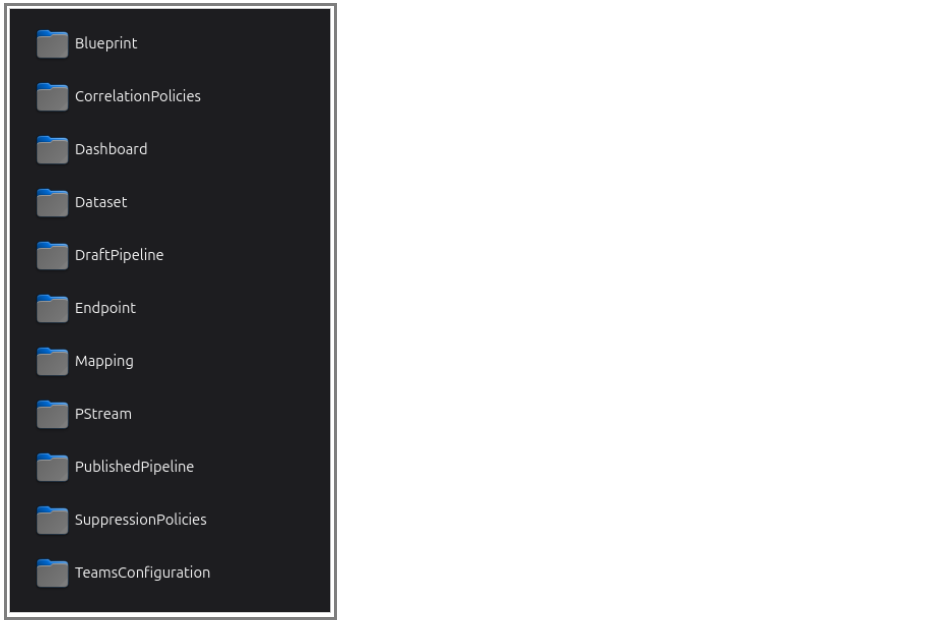
8.5.2 Sample Manifest File Structure
name: june18_t1
label: june18_t1
version: 1.0.0
type: feature
published_date: '2025-06-18'
publisher: Fabrix.ai
scope: system
description:
  md: ./artifact_pack_overview.md
artifacts:
  blueprints:
    - name: Alerts Enricher
      file: snapshot-artifacts/Blueprint/Alerts Enricher.json
8.5.3 Sample Description File For The Pack
## Overview section
This pack can be used to restore the artifacts in another environment.

## Pre-Requisite Steps
- Add `credentials` named **asset-discovery** required by other artifacts

## Quick Start Guide
1. If there are steps listed in Pre-requisite section, complete them.
2. Activate the pack to restore the artifacts.
8.6 RDA Pack Creation with Regular Expression (8.2.0)
- rdac pack create command can be used to create packs with regular expressions for artifacts names
rdauser@rdapacks:~$ cat regular_expression.json
{
  "default_artifact_type_backup": false,
  "artifact": {
    "pstream": {
      "backup_all": false,
      "artifacts": ["network.*"]
    }
  }
}
rdauser@rdapacks:~$ rdac pack create --name bp_regex_1 --version 1.0.0 --artifact_config regular_expression.json  --upload
Wait for 30 seconds... Collecting artifacts for Pack: bp_regex_1 version: 1.0.0
Creating Pack: bp_regex_1 version: 1.0.0
Saving artifact file: snapshot-artifacts/Dataset/asset-discovery-output-snmp.json
Saving artifact file: snapshot-artifacts/Dataset/ifTypeLabel_dict.json
Saving artifact file: snapshot-artifacts/PStream/discovery_logs.json
Saving artifact file: snapshot-artifacts/PStream/discovery_status.json
Saving artifact file: snapshot-artifacts/PStream/network_access_verification.json
Saving artifact file: snapshot-artifacts/PStream/network_access_verification_final.json
Saving artifact file: snapshot-artifacts/PStream/network_device_interfaces.json
Saving artifact file: snapshot-artifacts/PStream/network_device_inventory.json
Saving artifact file: snapshot-artifacts/PStream/network_devices_cdp.json
Saving artifact file: snapshot-artifacts/PublishedPipeline/cisco_discovery_main_pipeline.txt
Saving artifact file: snapshot-artifacts/PublishedPipeline/discovery_collection.txt
Saving artifact file: snapshot-artifacts/PublishedPipeline/discovery_main_pipeline.txt
Saving artifact file: snapshot-artifacts/PublishedPipeline/fortinet_discovery_main_pipeline.txt
Saving artifact file: snapshot-artifacts/PublishedPipeline/juniper_discovery_main_pipeline.txt
Saving artifact file: snapshot-artifacts/PublishedPipeline/network_access_verification_pipeline.txt
Saving artifact file: snapshot-artifacts/PublishedPipeline/other_vendors_discovery_main_pipeline.txt
RDA Pack manifest.yaml generated
RDA Pack dependency overview generated
Generating Pack file: bp_regex_1.tar.gz
Uploading Pack: bp_regex_1 version: 1.0.0 file: bp_regex_1.tar.gz
RDA Pack: bp_regex_1 created successfully
8.7 RDA Packs Creation without any dependencies
-
–no-dependenciesPrevents dependencies from being included during pack creation. -
By default, all required dependencies are resolved and backed up as part of the pack creation process. When the
--no-dependenciesargument is provided, the pack creation process includes only the selected items and ignores any associated dependencies.
rdauser@test-vm01:~$ rdac pack create --name test_no_depend --version 3.0.1 --artifact_config '{\"default_artifact_type_backup\": false, \"artifact\": {\"dashboard\": {\"backup_all\": false, \"artifacts\": [\"test-dashboard\"]}}}' --no-dependencies
Wait for 30 seconds... Collecting artifacts for Pack: test_no_depend version: 3.0.1
Creating Pack: test_no_depend version: 3.0.1
Saving artifact file: snapshot-artifacts/Dashboard/test-dashboard.json
RDA Pack manifest.yaml generated
RDA Pack dependency overview generated
Generating Pack file: test_no_depend.tar.gz
Uploading Pack: test_no_depend version: 3.0.1 file: test_no_depend.tar.gz
RDA Pack: test_no_depend created successfully
9 Create RDA Pack from UI
The Dashboard Create Pack feature allows user to export a single dashboard along with all its dependencies into a self-contained pack. This pack can then be easily deployed into another system or environment, ensuring consistent and complete dashboard migration.
Steps to Create Pack
1. Log in to the RDA Portal as an Administrator.
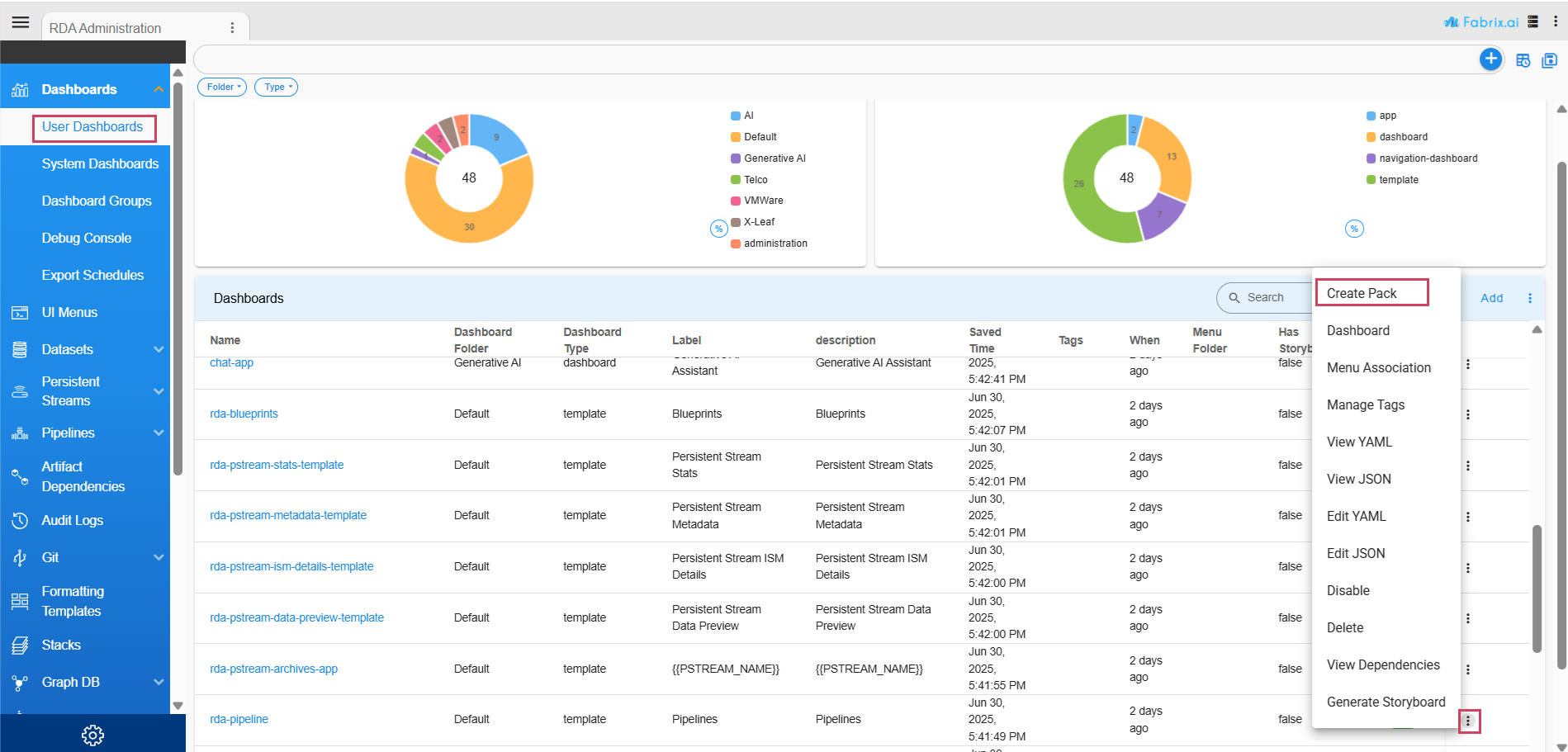
2. Navigate to RDA Administration → User Dashboards.
3. From the list of available dashboards, select the action menu (⋮) for the dashboard you want to export.
4. Click on “Create Pack”.
5. A pop-up modal will appear:
-
Enter a Pack Name and Version.
-
Review the list of Dependencies that will be automatically included in the pack.
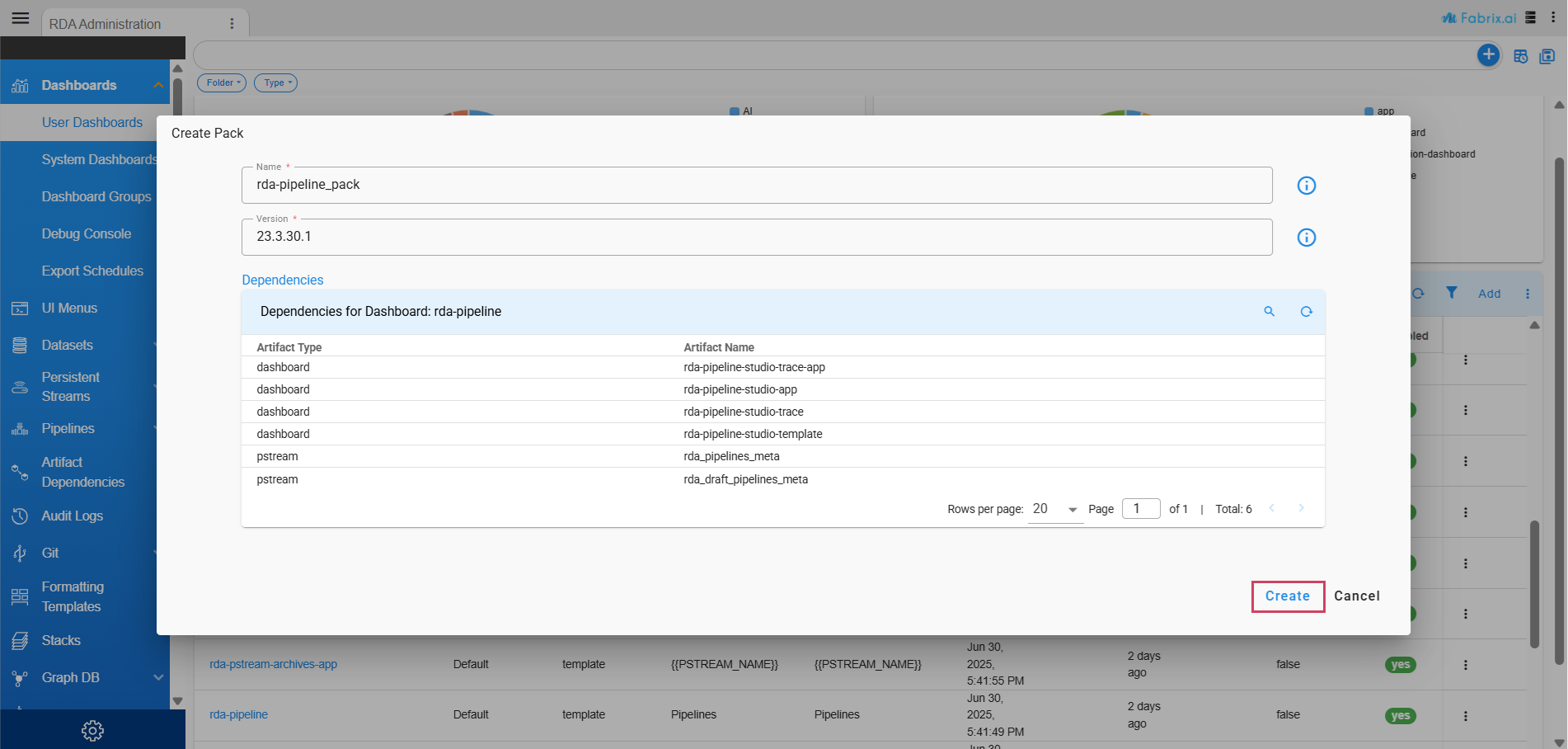
6. Click "Create" to generate the pack.
Once the pack is created, you can download it from My Downloads.
Dependencies
When a user creates a pack from a dashboard, the system automatically identifies and includes all required dependencies to ensure the dashboard operates seamlessly in the target environment.
These dependencies may include:
-
All pstreams used in the dashboard definition
-
Any referenced dashboards through drilldowns or cross-links
-
Blueprints (Supported in 8.1.1)
-
Pipelines (Supported in 8.1.1)
Before the pack is generated, a pop-up window displays a summary table of all the components that will be included. This allows the user to review and confirm the contents before proceeding.
Deploying the Pack
Once the pack is downloaded, it can be uploaded and deployed into another RDA instance using the Packs interface. This makes it easy to transfer dashboards and their dependencies between environments.
10 Create RDA Pack Manually
RDA Packs tar file can be created manually by following the steps below
1. Create the directory structure
- Follow the structure described in Section 3 Structure of RDA Packs in the RDA Packs User Guide.
2. Create the manifest.yaml file
- Refer to Section 3 Structure of RDA Packs in the RDA Packs User Guide for details.
3. Define pack metadata
- In the manifest.yaml file, specify the name, version, and description of the pack.
4. Add artifacts
- Include all artifacts that should be created by the pack during deployment. Refer to the table below for sample YAML entries for each supported artifact.
Artifact |
Sample YAML in Manifest |
|---|---|
| pstream | pstreams: - name: network_device_interfaces attributes: unique_keys: [ "unique_id", "customer_tag" ] |
| dataset | datasets: - name: ifTypeLabel_dict data_file: ./data/ifTypeLabel_dict.csv folder: NetworkDevicePack |
| pipeline | pipelines: - name: access_verification_main_pipeline folder: NetworkDevicePack version: 2024.03.19.2 file: ./artifacts/pipelines/access_verification_main_pipeline.txt |
| dashboards | dashboards: - name: network_device file: ./artifacts/dashboards/network_device.json |
| blueprint | blueprints: - name: network_device_discovery file: ./artifacts/blueprints/network_device_discovery.yaml |
| credentials | credentials: - name: asset-discovery type: asset-discovery |
| icon | icons: - name: test_icon file: ./artifacts/icons/test_icon.jpg |
| formatting template | formatting_templates: - name: test_raise_alerts_from_anomalies file: ./artifacts/formatting_templates/test_raise_alerts_from_anomalies.template folder: test_templates version: 2024.03.19.1 |
| endpoint | endpoints: - name: endpoint1 file: ./artifacts/endpoints/endpoint1.json - name: endpoint2 |
| graphdb | graphdbs: - name: test_db |
| stack | stacks: - name: test_pack_stack file: ./artifacts/stacks/host_os_stack.json |
| tags | tags: - name: TAG_tag2 description: create via pack |
| user group | user_groups: - name: msp_admin_grp2 tags: - TAG_tag2 - TAG_tag3 role: msp-admin |
| mapping | mappings: - file: artifacts/Mapping/test_mapping.json |
| correlation policy | correlation_policies: - name: test_cp-2 file: snapshot-artifacts/CorrelationPolicies/test_cp-2.json |
| suppression policy | suppression_policies: - name: test_sp-1 file: snapshot-artifacts/SuppressionPolicies/test_sp-1.json |
| FSM model | fsm_models: - name: model1 version: 1.0.0 file: ./artifacts/fsm-models/model1.json |
| team configuration | teams_configuration: - name: test1 file: snapshot-artifacts/TeamsConfiguration/test1.json |
| relationship map | relationship_maps: - name: test_gdb_relationship_map file: ./artifacts/stacks/test_gdb_relationship_map.json remove_on_deactivation: false |
| alert_rules | alert_rules: -name: test_alertRules file: ./artifacts/alert_rules/test_alertRules.json |
| notification_channels | notification_channels: -name: test_notificationChannels file: ./artifacts/notification_channels/test_notificationChannels.json |
| dashboard_groups | dashboard_groups: - name: network_monitoring label: Network Monitoring description: Network monitoring dashboards user_groups: - network_admins dashboard_names: - network_device - network_topology enabled: true creation_policy: fail |
| permission_groups | permission_groups: - name: network_ops_permissions app: network_ops file: ./artifacts/permission_groups/network_ops_permissions.json creation_policy: fail |
| user_roles | user_roles: - name: network_operator file: ./artifacts/user_roles/network_operator.json profile_type: custom creation_policy: fail |
| data_access_policies | data_access_policies: - name: network_data_policy file: ./artifacts/data_access_policies/network_data_policy.json creation_policy: fail |
| agents | agents: - name: network_analysis_agent file: ./artifacts/agents/network_analysis_agent.json ai_project: network_ai_project creation_policy: fail |
| toolsets | toolsets: - name: network_tools file: ./artifacts/toolsets/network_tools.json ai_project: network_ai_project creation_policy: fail |
| ai_projects | ai_projects: - name: network_ai_project file: ./artifacts/ai_projects/network_ai_project.json creation_policy: fail |
| ai_personas | ai_personas: - name: network_analyst_persona file: ./artifacts/ai_personas/network_analyst_persona.json publish_to_stream: network_analyst_stream creation_policy: fail |
| dynamic_lovs | dynamic_lovs: - name: network_device_types file: ./artifacts/dynamic_lovs/network_device_types.json ai_project: network_ai_project creation_policy: fail |
| prompt_templates | prompt_templates: - name: network_analysis_prompt file: ./artifacts/prompt_templates/network_analysis_prompt.json creation_policy: fail |
| textfsm | textfsms: - name: cisco_ios_show_version template_file: ./artifacts/textfsms/cisco_ios_show_version.template input_file: ./artifacts/textfsms/cisco_ios_show_version.input version: 1.0.0 creation_policy: fail |
5. Create the tar.gz file
- Ensure that the manifest.yaml file is located at the top level of the tarball.
11 Creation Policy for RDA Pack Artifacts
Overview
The creation_policy field allows you to control how RDA Packs handle artifacts that already exist in the system during pack activation. This feature provides fine-grained control over artifact deployment behavior, helping you manage conflicts and updates more effectively.
11.1 Creation Policy Values Explanation
The creation_policy field supports three values
1) skip (Default)
Behavior
| Condition | Outcome |
|---|---|
| Artifact already exists | The artifact is skipped; existing version left unchanged. |
| Artifact does not exist | The artifact is created normally. |
Use Case: This policy is intended for preserving existing artifacts while only creating new ones. As the default behavior, it is ideal for most scenarios requiring the protection of existing configurations from being overwritten.
pipelines:
  - name: my_pipeline
    version: "1.0.0"
    file: ./artifacts/pipelines/my_pipeline.txt
    creation_policy: skip
2) fail
Behavior
| Condition | Outcome |
|---|---|
| Artifact already exists | The artifact is skipped (no changes made), and activation continues. |
| Artifact does not exist | The pack activation fails with an error, and no changes are made. |
Use Case: Use this policy to ensure that required artifacts exist before pack activation. This approach is useful for dependencies or prerequisites that must be created separately rather than by the pack itself. To ensure proper setup order, the pack will fail if these artifacts are missing.
credentials:
  - name: prerequisite_credential
    type: ssh
    creation_policy: fail  # Must exist before pack activation
3) overwrite
Behavior
| Condition | Outcome |
|---|---|
| Artifact already exists | The existing artifact is updated/replaced with the version from the pack. |
| Artifact does not exist | The artifact is created normally. |
Use Case: Use this policy when user wants to ensure that the pack's version of the artifact always takes precedence, updating existing artifacts with the latest configuration from the pack.
dashboards:
  - name: network_dashboard
    file: ./artifacts/dashboards/network_dashboard.json
    creation_policy: overwrite
11.2 Supported Artifacts
| Artifact Type | Identifier | Overwrite Behavior |
|---|---|---|
| Persistent Streams | pstreams |
|
| Datasets | datasets |
Data not overwritten |
| Pipelines | pipelines |
Data not overwritten |
| Dashboards | dashboards |
|
| Dashboard Groups | dashboard_groups |
|
| Blueprints | blueprints |
|
| TextFSM Templates | textfsms |
|
| Icons | icons |
|
| Stacks | stacks |
|
| Workflows | workflows |
|
| Dynamic LOVs | dynamic_lovs |
|
| AI Personas | ai_personas |
|
| AI Projects | ai_projects |
|
| Prompt Templates | prompt_templates |
|
| Toolsets | toolsets |
|
| Relationship Maps | relationship_maps |
|
| Credentials | credentials |
|
| GraphDBs | graphdbs |
|
| Endpoints | endpoints |
|
| Mappings | mappings |
Will NOT be Overwritten |
| Correlation Policies | correlation_policies |
|
| Suppression Policies | suppression_policies |
|
| Tags | tags |
|
| Permission Groups | permission_groups |
|
| User Roles | user_roles |
|
| Data Access Policies | data_access_policies |
|
| User Groups | user_groups |
|
| Team Configurations | teams_configuration |
|
| FSM Models | fsm_models |
|
| Formatting Templates | formatting_templates |
|
| Alert Rules | alert_rules |
|
| Notification Channels | notification_channels |
11.3 Viewing Creation Policy in UI
After a pack is uploaded to the RDA Fabric platform, User can view the creation_policy values set for different artifacts through the user interface. Navigate to the pack's View Details page, where you will see a comprehensive listing of all artifacts included in the pack along with their respective creation_policy values.
This visibility helps you:
- Understand how each artifact will behave during pack activation
- Verify that the correct policies are set for your use case
- Review pack contents before activation to avoid unexpected behavior
- Plan your deployment strategy based on the policies configured
The creation_policy value is displayed for each artifact in the artifact listing tables, making it easy to see at a glance which artifacts will be skipped, overwritten, or required to exist before activation.
11.4 Usage in Manifest File
User can specify creation_policy for individual artifacts in their manifest.yaml file:
pipelines:
  - name: data_ingestion_pipeline
    version: "2024.03.19.1"
    file: ./artifacts/pipelines/data_ingestion_pipeline.txt
    creation_policy: skip  # Skip if already exists
dashboards:
  - name: network_monitoring
    file: ./artifacts/dashboards/network_monitoring.json
    creation_policy: overwrite  # Always update to pack version
credentials:
  - name: production_ssh_credential
    type: ssh
    creation_policy: fail  # Must exist before pack activation
11.5 Mixed Policies in Same Artifact Type
User can use different creation policies for different artifacts of the same type:
dashboards:
    - name: read_only_dashboard
      file: ./artifacts/dashboards/read_only.json
      creation_policy: skip  # Preserve existing

    - name: updatable_dashboard
      file: ./artifacts/dashboards/updatable.json
      creation_policy: overwrite  # Always update
11.6 Default Behavior
If creation_policy is not specified, the default value is skip. This means: These two are equivalent:
pipelines:
  - name: my_pipeline
    version: "1.0.0"
    file: ./artifacts/pipelines/my_pipeline.txt
    # creation_policy defaults to 'skip'

pipelines:
  - name: my_pipeline
    version: "1.0.0"
    file: ./artifacts/pipelines/my_pipeline.txt
    creation_policy: skip
11.7 Complete Example
Here's a complete example showing creation_policy usage across different artifact types:
pstreams:
- name: network_metrics
    description: Network device metrics stream
    file: ./artifacts/pstreams/network_metrics.json
    creation_policy: skip
datasets:
- name: device_inventory
    file: ./artifacts/datasets/device_inventory.csv
    creation_policy: overwrite
pipelines:
- name: device_discovery_pipeline
    version: "2024.03.19.1"
    file: ./artifacts/pipelines/device_discovery.txt
    creation_policy: skip

- name: metrics_collection_pipeline
    version: "2024.03.19.1"
    file: ./artifacts/pipelines/metrics_collection.txt
    creation_policy: overwrite
dashboards:
- name: network_overview
    file: ./artifacts/dashboards/network_overview.json
    creation_policy: overwrite
blueprints:
- name: network_device_blueprint
    file: ./artifacts/blueprints/network_device.yaml
    creation_policy: skip
credentials:
- name: network_device_ssh
    type: ssh
    creation_policy: fail  # Must exist before pack activation
Best Practices
| Policy / Recommendation | Explanation / When to Use |
|---|---|
Use skip for stable artifacts |
For stable artifacts that are rarely updated and where existing configurations should be preserved. |
Use overwrite for managed artifacts |
For actively maintained artifacts that should always reflect the pack's version. |
Use fail for prerequisites |
For prerequisites that must exist before pack activation; ensures dependencies are created separately and fails fast if missing. |
| Consider Pack Versioning | When using overwrite, ensure your pack versioning strategy accounts for artifact updates to maintain traceability. |
Notes
-
The
creation_policyapplies during pack activation. It does not affect pack deactivation. -
For artifacts with versions (like pipelines and TextFSM templates), the policy applies to the specific version being deployed.
-
The
creation_policyworks in conjunction withremove_on_deactivation. An artifact can be skipped during activation but still removed during deactivation ifremove_on_deactivation:true. -
When using overwrite with versioned artifacts, ensure you're updating to a compatible or newer version to avoid breaking dependencies.
12 Bundles to Packs Migration
The Bundles page has been deprecated from the RDA Administration. Identified bundles have been converted to solution packs, which can now be uploaded via the “Upload from Catalog” option on the Packs page in RDA Administration.
12.1 Mapping: System Bundles to Solution Packs
The following is the list of system bundles and their corresponding solution packs:
| System Bundle | Corresponding Solution Pack(s) |
|---|---|
network_inventory_bundle |
Network Device Discovery |
topology_path_viz_bundle |
Network Device Discovery, VMWare vCenter, Cisco vManage, VMWare VeloCloud, Linux and Windows Host OS |
kpi_workbench |
Fabrix AIOps Network Performance Management SNMP |
kpi_workbench_telemetry |
Fabrix AIOps Network Performance Management Telemetry |
oia_l1_l2_bundle |
Fabrix AIOps Fault Management Base |
bulkstats_ml_insights |
Fabrix AIOps BulkStats |
ml_asset_correlation_regression |
Fabrix AIOps Correlation and Regression |
ml_metrics_regression |
Fabrix AIOps Regression |
oia_ml_bundle |
Fabrix AIOps ML |
fsm_events_kafka_publisher_bundles |
Fabrix AIOps Ticketing Base (coming soon) |
oia_fsm_common_ticketing_bundle |
Fabrix AIOps Ticketing Base (coming soon) |
oia_fsm_aots_ticketing_bundle |
Fabrix AIOps BMC Remedy Ticketing (coming soon) |
oia_fsm_smartbonding_ticketing_bundle |
Fabrix AIOps SmartBonding Ticketing (coming soon) |
oia_fsm_snow_ticketing_bundle |
Fabrix AIOps ServiceNow Ticketing (coming soon) |
12.2 Obsoleted System Bundles
The following system bundles have been obsoleted:
aia_network_ipt_bundleall_credentials_connectivitydashboard_schedule_bundlegraphdb_bundleopsgenie_bundlesynthetic_metric_anomalies_bundlesystemtopo-artifactsmetrics_workbenchdevice_onboarding_artifactsupload_devices_bpa_bundleperformance_management_bundlebcs_operational_insightsbluecat_aia_bundleHPNA_AIA_bundleoia_periodic_alerts_stream_sync_bundleoia_stream_sync_bundleseasonality_based_metrics_regression_bundledna_center_bundle