LogRhythm
1. Introduction
LogRhythm is a widely adopted Security Information and Event Management (SIEM) platform designed to support Security Operations Centers (SOCs) in detecting threats, managing incidents, and ensuring regulatory compliance.
The platform enables real-time collection, correlation, and analysis of security logs and events across your environment. Key capabilities include:
-
Centralized log collection and normalization
-
Advanced threat detection and analytics
-
Compliance auditing and reporting
-
Automated security workflows (SOAR)
-
Integration with third-party security tools, applications, and appliances
LogRhythm empowers organizations to gain deeper visibility into their security posture and respond to threats more efficiently.
2. Prerequisites
fabrix.ai RDAF Platform requires a read-only service API user account created. CFX requires a read-only username and password. The user created should be able to run API calls against the LogRhythm tool to fetch the data.
3. API reference Document
Exabeam LogRhythm SIEM Integration: Fetch Lists
4. Steps to Create a Read-Only User
4.1 Log in as an Administrator
- Access the LogRhythm Admin Console or Web Console (based on your deployment version).
4.2 Navigate to Deployment Manager
- Go to the Deployment Manager section.
4.3 Add a New User
-
Click Add User under the Users section.
-
Enter the required user details such as username, email, etc.
4.4 Assign a Role with Read-Only Permissions
For restricted access, assign the user to a read-only role:
-
Option 1: Use existing built-in roles like Auditor or Read-Only (if available).
-
Option 2: Create a custom role with only read permissions. Recommended role name: api_read_only.
Suggested Minimal Access Areas
a) Alarms
b) Logs
c) Incidents
d) Reports
e) Dashboards
f) Investigations
4.5 Apply and Save
- Apply the role and save the user configuration.
4.6 Generate an API Token (Optional – for API Access)
-
Log in to the Web Console as the newly created user.
-
Go to User Profile > API Tokens.
-
Click Generate New Token.
-
Copy and store the token securely, as it will be required for making authenticated API calls.
5. Adding Logrhythm in RDA Integration
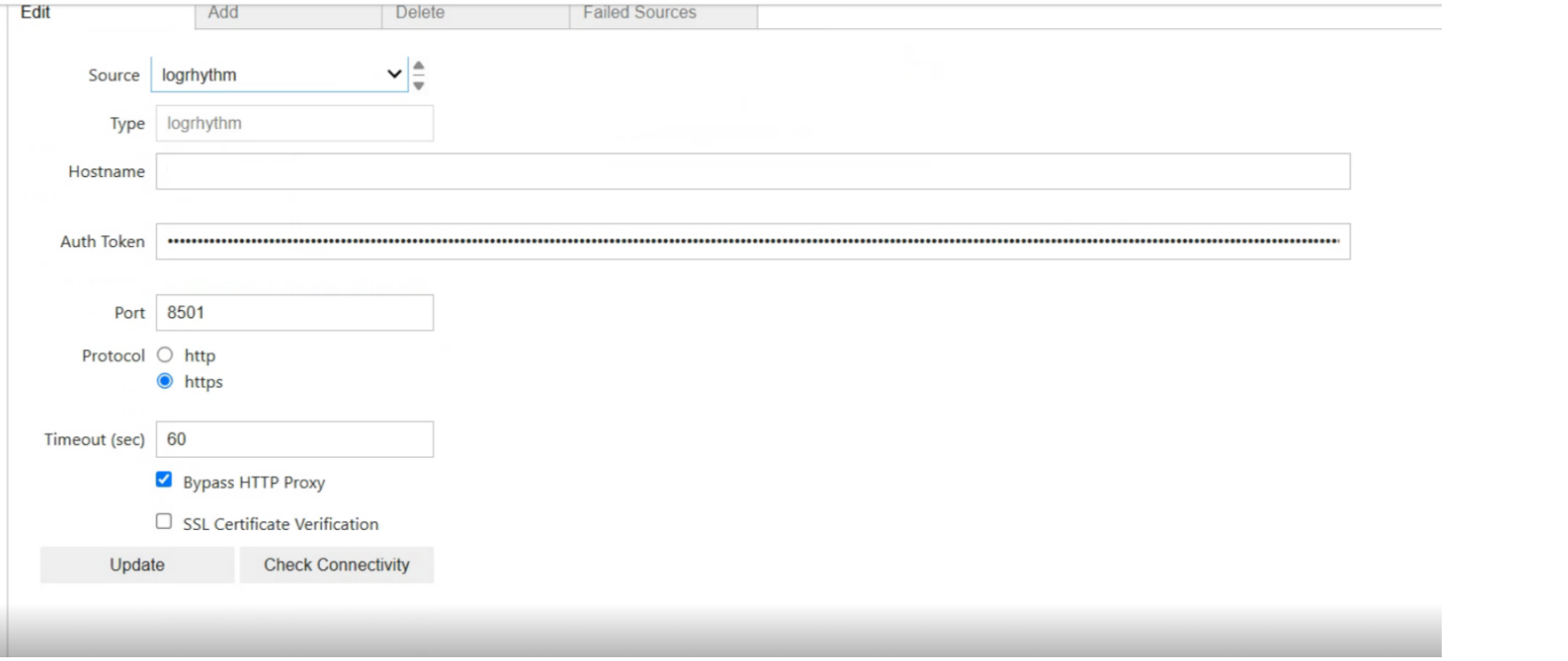
Login to the CFX RDAF portal → Home → Configuration → RDA Integrations and click on Add, Users will see the below attached screenshot.
6. Enter the below details to add Logrhythm as a Data Source
- Secret Type - logrhythm
- Name . (Eg- logrhythm )
- Hostname - logrhythm IP address or DNS name
- API Auth Key/token
- Port (eg.8501)
- Protocol (https)
7. Sample Usage of Logrhythm Bot in a Pipeline
- @logrhythm:alarms
%% stream = no and limit = 0

## LogRhythm Alarms Inventory Collection
@c:new-block
    --> @dm:empty
    --> @dm:addrow logrhythm_ip = '10.xx.xx.xx'
    --> @logrhythm:alarms column_name ="logrhythm_ip"
    --> @dm:save name = "logrhythm-alarms"
8. List of Logrhythm Bots
1. @logrhythm:alarms
2. @logrhythm:alarm-id-details
3. @logrhythm:alarm-summary
4. @logrhythm:alarm-events
5. @logrhythm:cases
6. @logrhythm:hosts
7. @logrhythm:logs